[Eng] Pre check-in

Screen Name

Pre Check-in

Summary

The screen allows pre check-in

Screen

image-20241002-081844.png

Fields Description

  1. Pre check-in process:

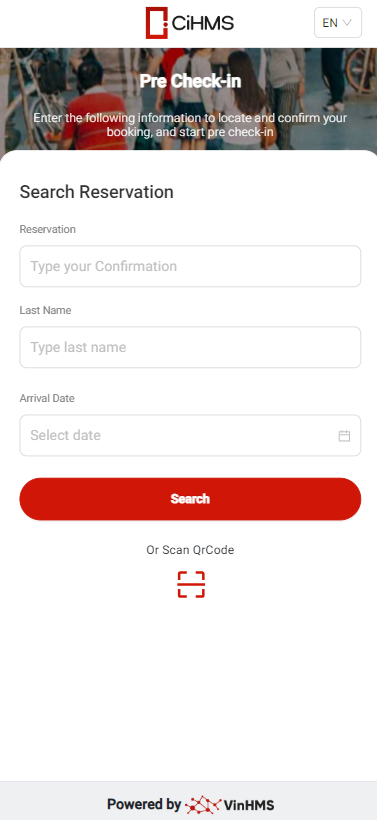
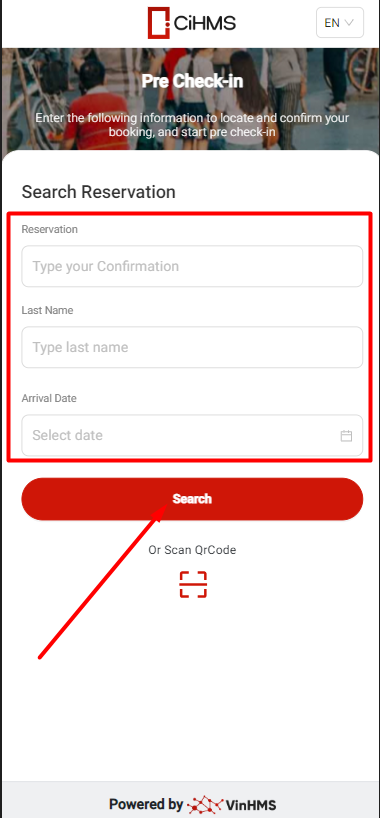
Option 1: On the Pre Check-in screen, fill in the information to search for the booking

  • Reservation (Confirmation number)

  • Last Name

  • Arrival Date

→ Click Search

image-20250110-235336.png

→ Enter the booking email → Select "Get Code" → The code will be sent to the booking email.

→ Check the booking information, Arrival/Departure → Select "Confirm

Option 2: You can use the QR code by selecting "Scan QR Code" and using the QR code provided by the Front Office (FO)
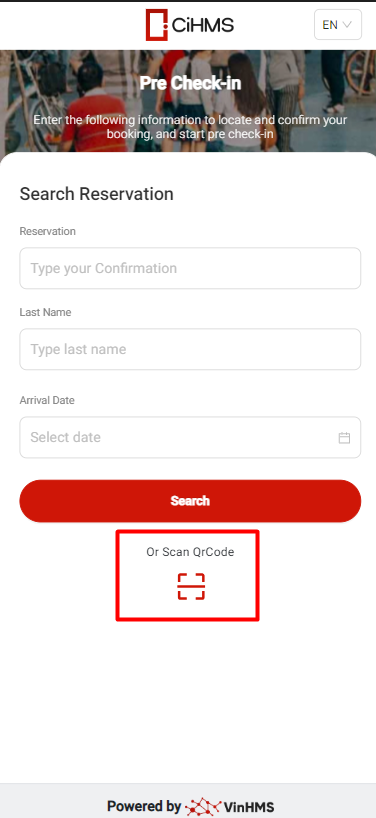
image-20250110-235448.png
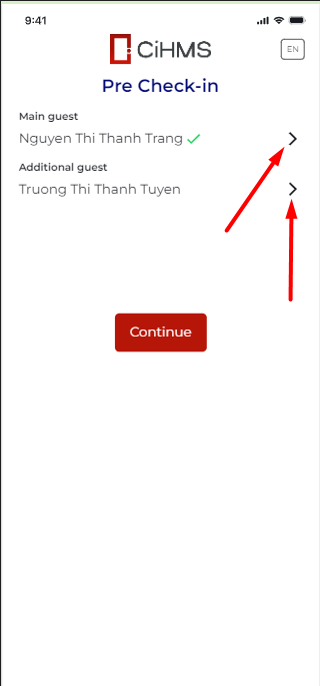
  1. Continue by selecting the main guest to update the guest information

  • The user selects the arrow to update the guest information (below)

image-20250111-000306.png
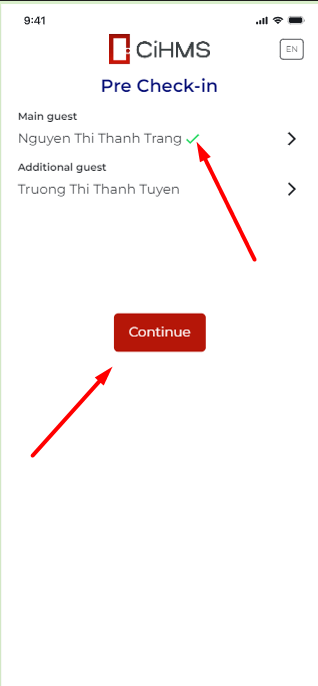
  • After updating all the information, a green checkmark will appear

  • Click Continue to reach the successful Pre Check-in screen

image-20250111-000348.png

⚠️ Note: If no guest information has been updated, the Continue button will be disabled
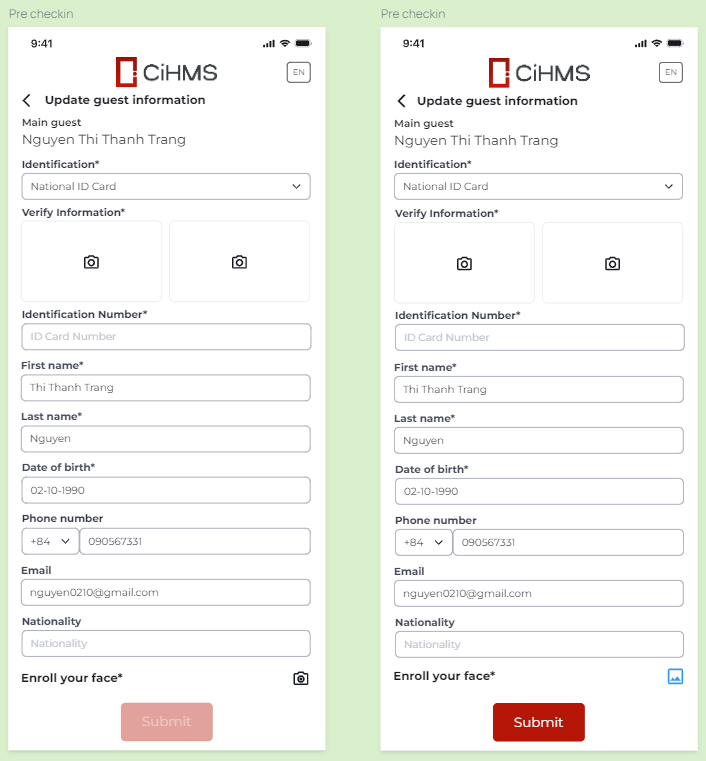
  1. Update guest information

  • Upload the ID document image to automatically fill in the fields for identify number, last name, first name, and date of birth

image-20240112-075707.png
  • Enroll face

Select the camera icon to open the camera and capture the face

image-20250111-000941.png

If the photo has been taken, the icon on the right will appear. Click on it to view the photo again

image-20250111-001028.png

Select "Take another photo" to open the camera and retake the photo
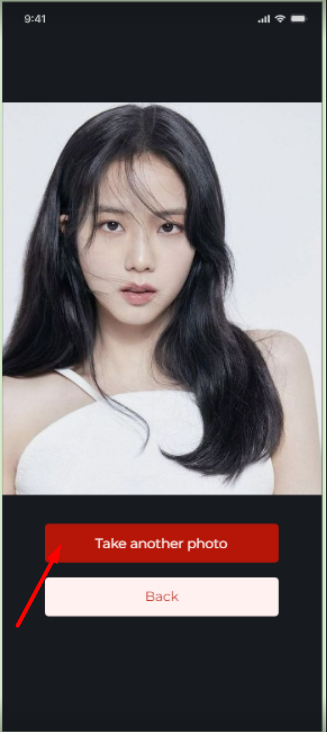
image-20250111-001125.png

After clicking "Submit," you will return to the Pre Check-in screen
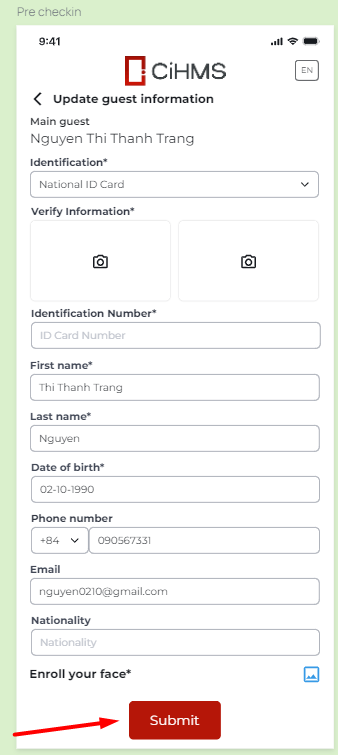
image-20250111-001215.png

Example:

  • When Truong Thi Thanh Tuyen scans the QR code to access Pre check-in, they will see that Nguyen Thi Thanh Trang has successfully completed pre check-in.

  • Truong Thi Thanh Tuyen proceeds with pre check-in as usual

image-20240112-082529.png
  1. Center screen (Welcome guest)

Guests who have completed pre check-in but have not checked in will not see the room number.

image-20240116-085941.png
  1. Check-in

After pre check-in, the Front Office (FO) will provide the room number to the guest, and the guest will proceed with check-in:
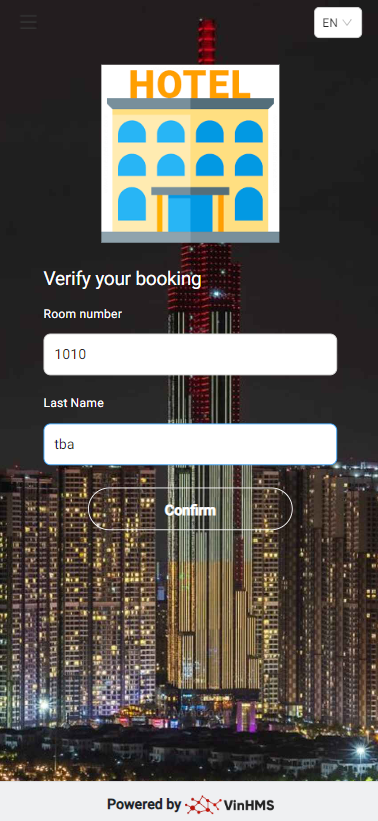
  • Enter the room number and last name.

  • Select Confirm.

image-20241003-025114.png
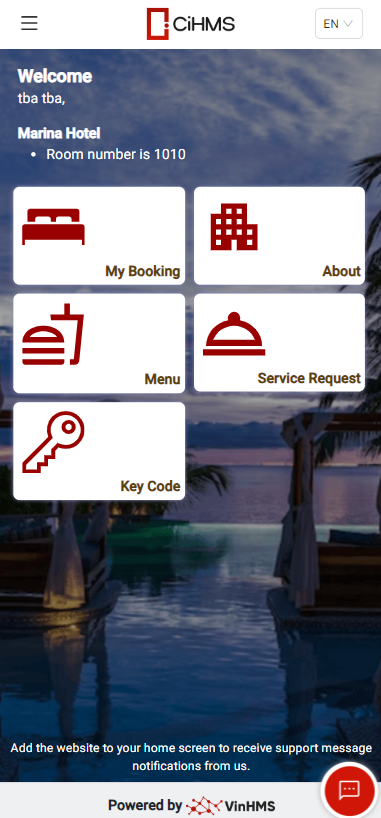
  • After confirming the correct room number and last name, the Welcome screen will appear, displaying the information.

image-20241003-025533.png

Remarks

  1. Guests performing Pre Check-in: Scan the QR code to follow the usual process.

  2. Guests who have not performed Pre Check-in: Scan the QR code, verify the confirmation number and last name, and directly go to the Home screen.

  3. Guests scanning the QR code at the restaurant table:

    • If Pre Check-in was done previously: Go directly to the Menu.

    • If the guest did not Pre Check-in: Confirm the booking code and last name, then proceed to the Menu.