[Eng] Guest

Screen Name

Guest

Log in – Front Office – Meal/ Package – Select “Guest”

Summary

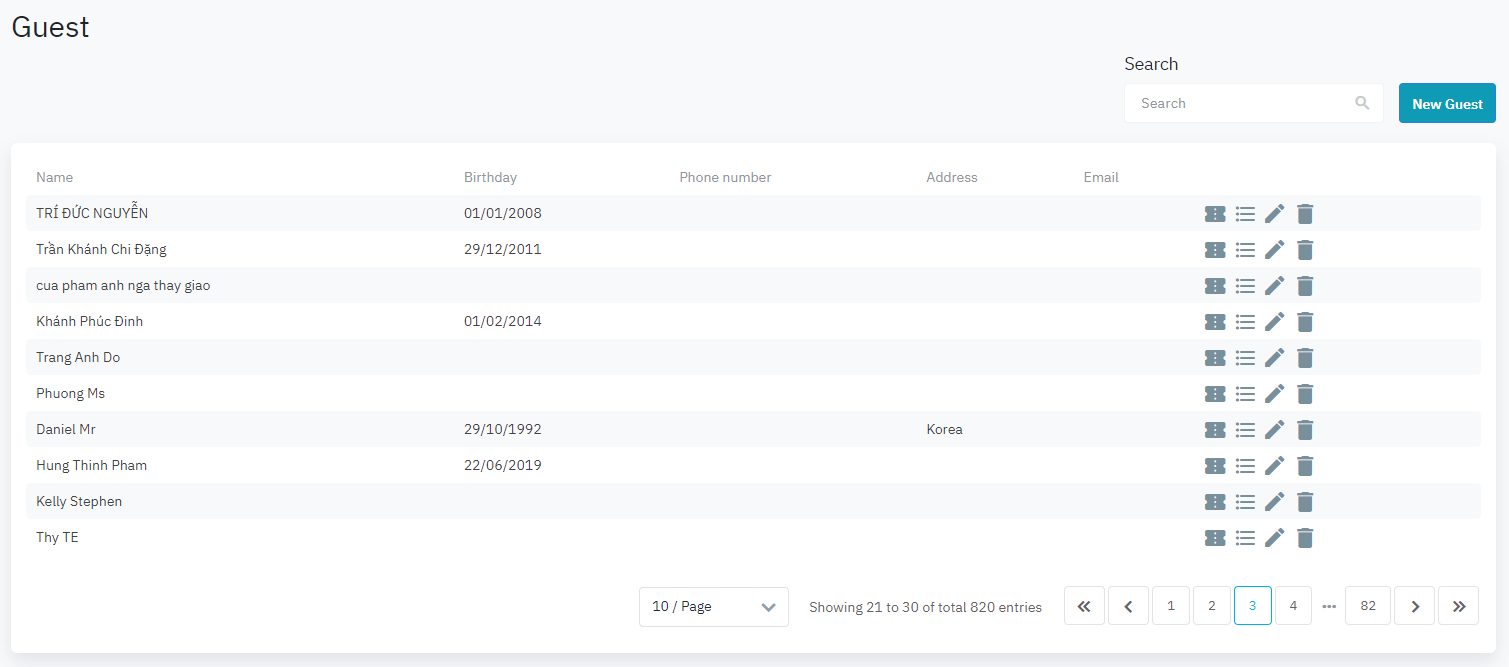
The screen allows you to search, view, and edit the list of guests that are using services like pool, gym, etc.

Screen

image-20230930-074818.png

Fields Description

[Filter] – Search criteria

image-20230930-074908.png
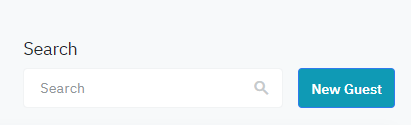
  • Keyword: allows you to search by guest name, email, phone number, address

[Result] – Search results

image-20230930-082546.png
  • First Name: First Name of the Guest

  • Last Name: Last Name of the Guest

  • Birthday: Birthday of the Guest

  • Phone Number: Phone Number of the Guest

  • Address: Address of the Guest

  • Email: Email of the Guest

  • Actions:

image-20231001-141549.png

Add new pool or gym ticket for the guest


image-20231001-141715.png

View the details of the tickets associated with the guest

image-20231001-141910.png

Edit guest’s profile

image-20210524-090309.png

Remove the guest’s profile

Add new guest’s profile

Step 1: Select button “New Guest” to add a new profile.
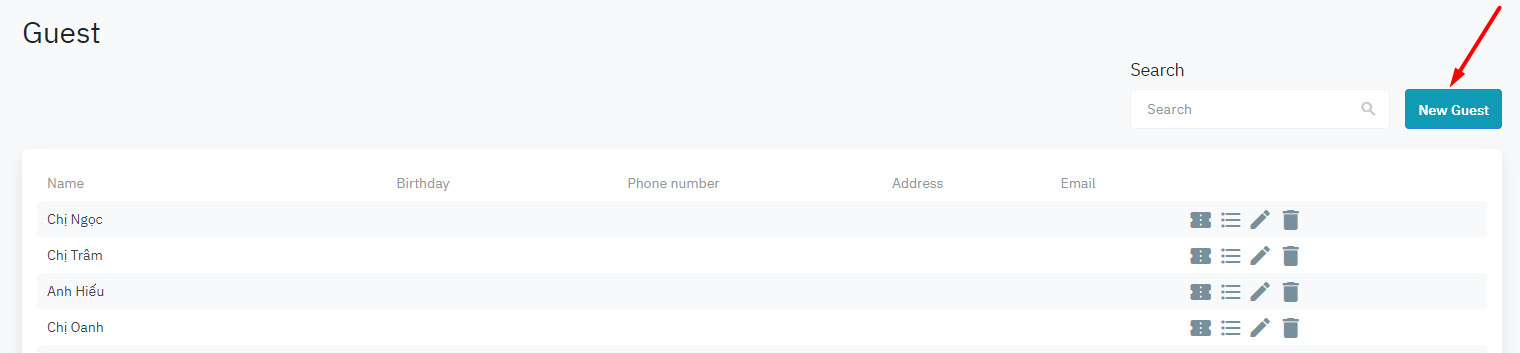
image-20231001-142041.png

Step 2: Enter the information about the guest. First Name and Last Name are required.
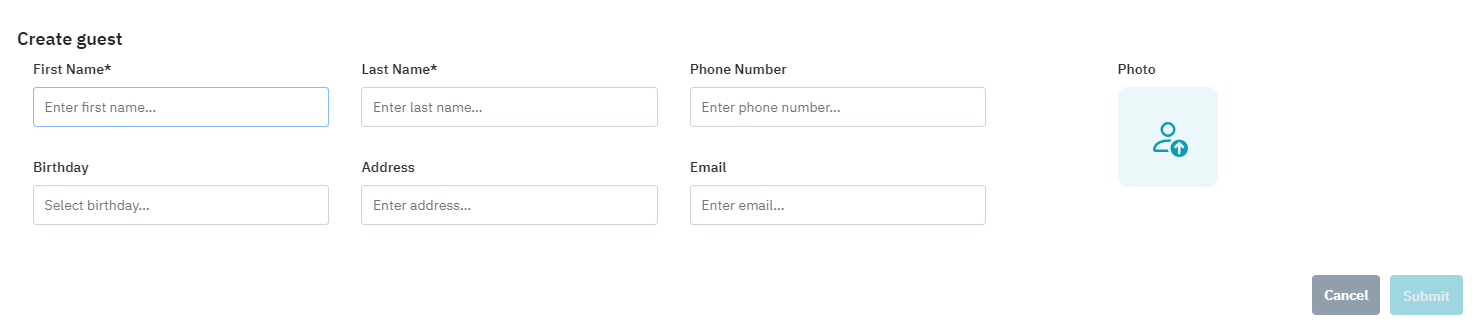
image-20231001-142102.png
  • First Name: First Name of the Guest

  • Last Name: Last Name of the Guest

  • Birthday: Birthday of the Guest

  • Address: Address of the Guest

  • Phone Number: Phone Number of the Guest

  • Email: Email of the Guest

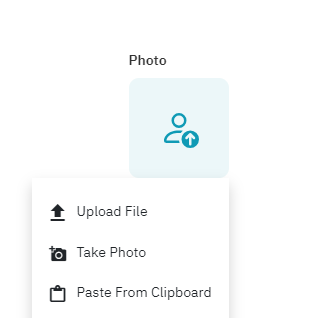
  • Photo: Add the avatar of the Guest. This photo is used when the guest checks in the service to identify them.

    • Upload File: Select the photo on the computer to upload

    • Take Photo: Use the Webcam of the computer to shoot the photo

    • Paste From Clipboard: You can also copy the image from a different source and “Past from Clipboard” to upload the photo

image-20231001-142218.png


Step 3: Select Submit to confirm adding the new profile.

Note: The profile created here is independent and not synchronized with the guest’s profile of the Front Office module.

Update guest’s profile

Step 1:

image-20231001-141910.png

Select this icon to update the information about the guest’s profile.

Step 2: Update the fields below
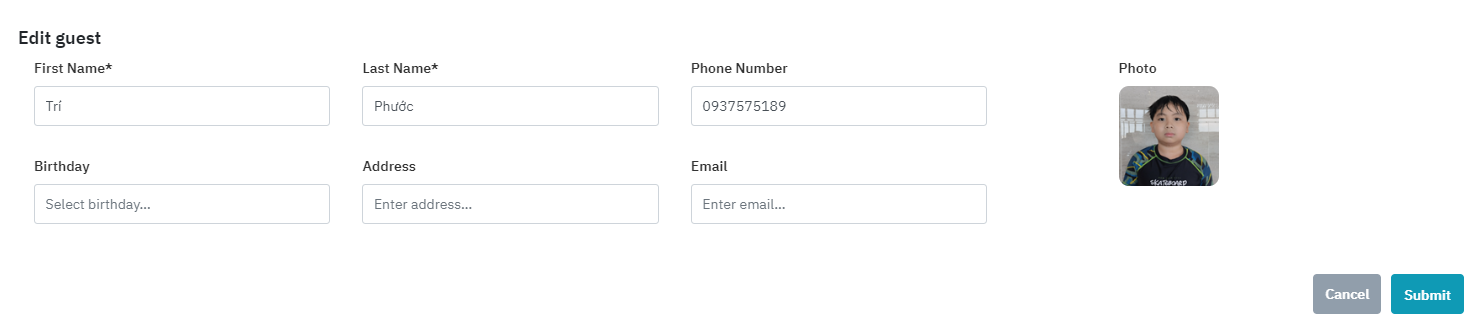
image-20231001-142353.png

Step 3: Select Submit to confirm editing this profile.

Add new pool, gym ticket for the guest

Step 1:

image-20231001-141549.png

Click on the + button to add a new ticket

Step 2: Enter the following details
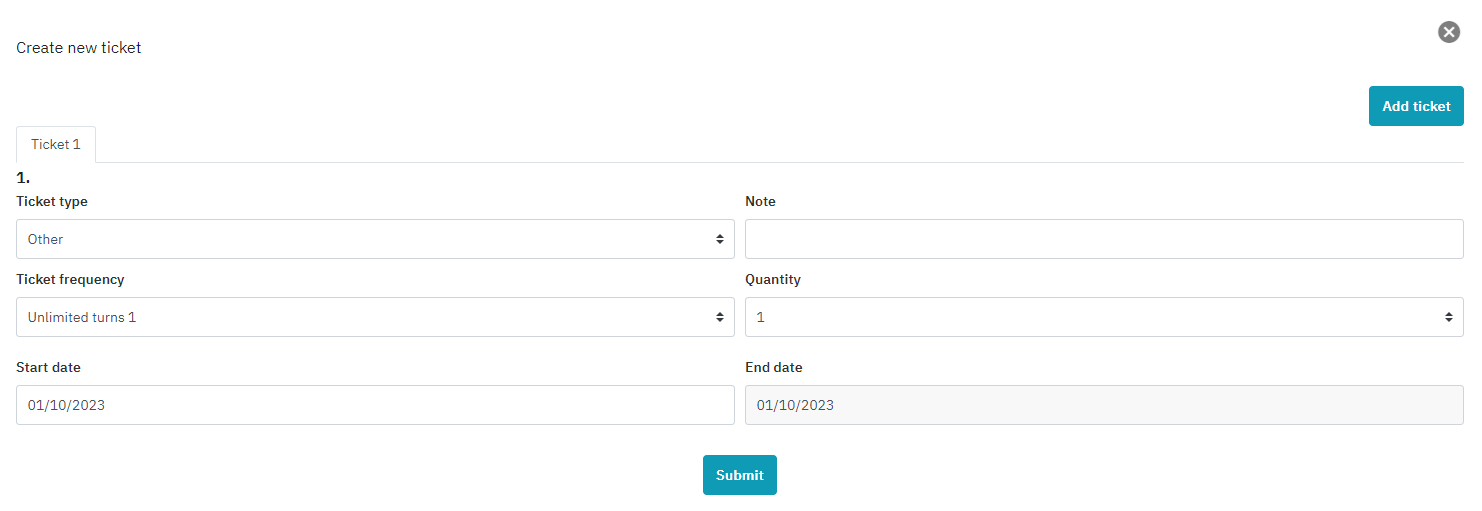
image-20231001-142634.png
  • Card: Card ID. Tap the key card on the reader to get automatically the Card ID

  • Ticket Type: Select the type of ticket (Pool, Gym, Other)

  • Unit:

    • Onetime: Single use ticket

    • Day: Daily ticket

    • Week: Weekly ticket

    • Month: Monthly ticket

    • Quarter: Quarterly ticket

    • 6 Months: Haft-year ticket

    • Custom: Valid from Start Time to End time

  • Number of Unit: Number of units. For example: if you want to add a ticket for 2 weeks, select the Unit = Week and Number of Unit = 2. If the Unit type = Custom, you may not enter the Number of Unit because this will take the validation from the Start Time and End Time.

  • Start Time: Effective Date of the ticket

  • End Time: End Effective Date of the ticket

  • Note: Reference note (if any)

View the list of tickets

Step 1:

image-20231001-141715.png

Click on this icon to see the list of created tickets
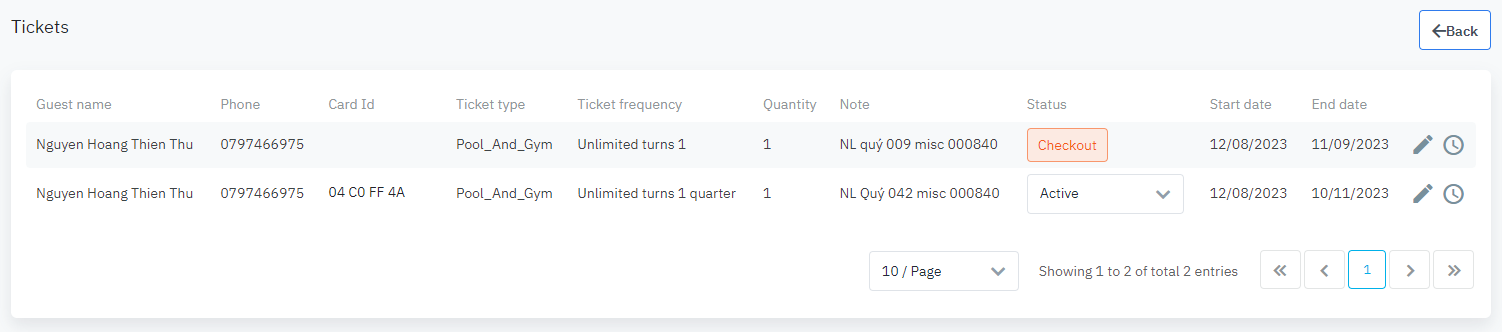

Step 2: The list is displayed with the following information:

image-20231001-144722.png
  • Guest: Name of the Guest

  • Card ID: ID of the key card

  • Ticket Type: Type of ticket

  • Number of Unit: Validation period of the ticket

  • Note: Reference note

  • Start Time: Effective Date of the ticket

  • End Time: End Effective Date of the ticket

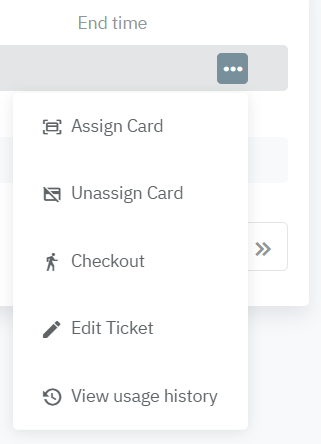
Action buttons:

image-20210525-091736.png
  • Assign card: Assign the card to the service

  • Unassign card: Un-assign the card from the service

  • Checkout: When the guest leaves the area (pool, gym), they should be checked-out from the services

  • Edit Ticket: Update the information on the ticket

  • View usage history: View the histories of usage of the services

Delete guest’s profile

Step 1:

image-20210524-090309.png

Click on this icon to remove the guest’s profile

Step 2: Click on Yes to confirm the action
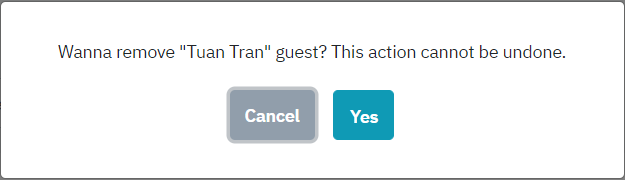
image-20210525-085609.png

Note: The deletion of the guest’s profile does not impact the tickets that are created for this guest.

Remarks

  • The profile created here is independent and not synchronized with the guest’s profile of the Front Office module.

  • The deletion of the guest’s profile does not impact the tickets that are created for this guest.

  • The card has been already assigned to a ticket and this guest is not checked out cannot be assigned to another ticket.