Screen Name
|
Functional Locations
|
Open Link
|
Login – Organization Management – Functional Locations
|
Summary
|
|
Build and manage the functional area diagram |
Screen
|
|
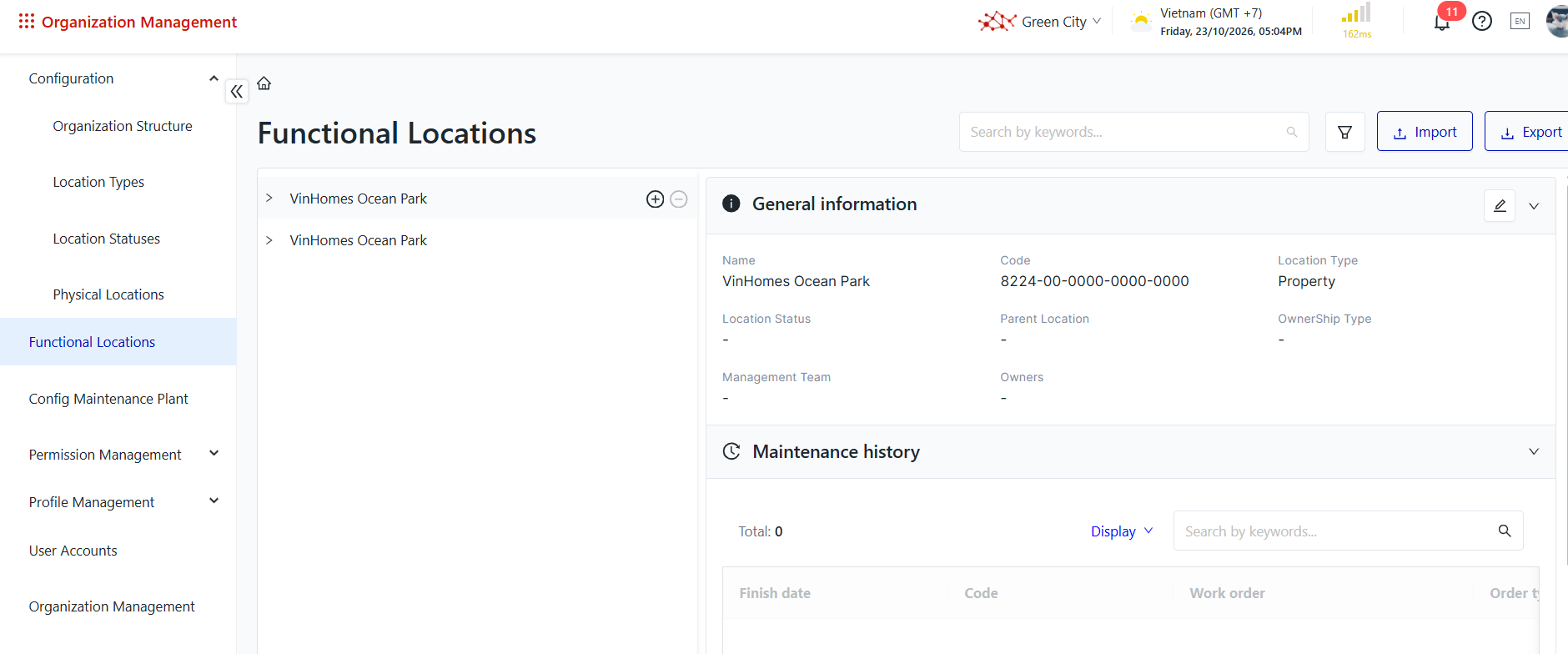
|
Fields Description
|
Steps to Perform
Step 1: The user accesses the Functional Area Management function. Alternatively, the user can access the function directly via the following link: Functional Area Management. 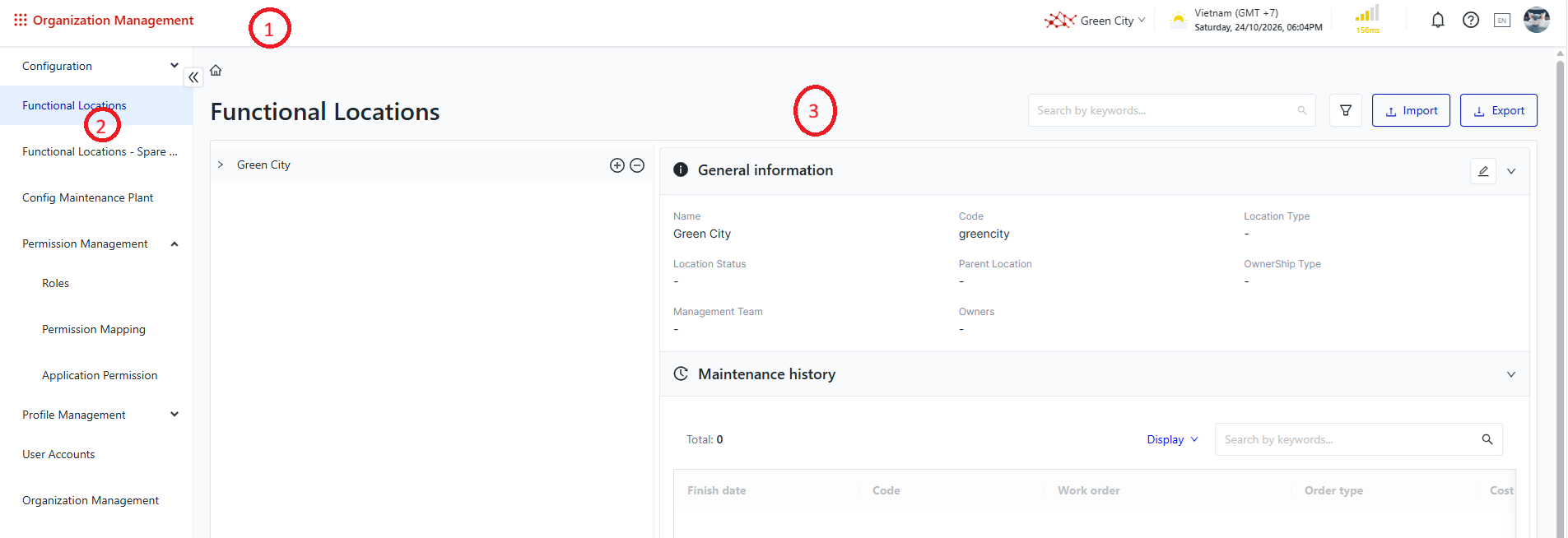
Details of the information displayed on the screen: ① Header: Contains configuration information related to the logged-in account. ② Menu: Contains a list of functions that the user is authorized to access within the module. ③ Business Operation Area: Displays business information and provides related operations. 1. View the Functional Area Tree
Purpose: View the functional area tree. Steps to Perform Step 1: The user accesses the Functional Area Management function in the Organization Management module, as described above. Step 2: View the functional area list screen. 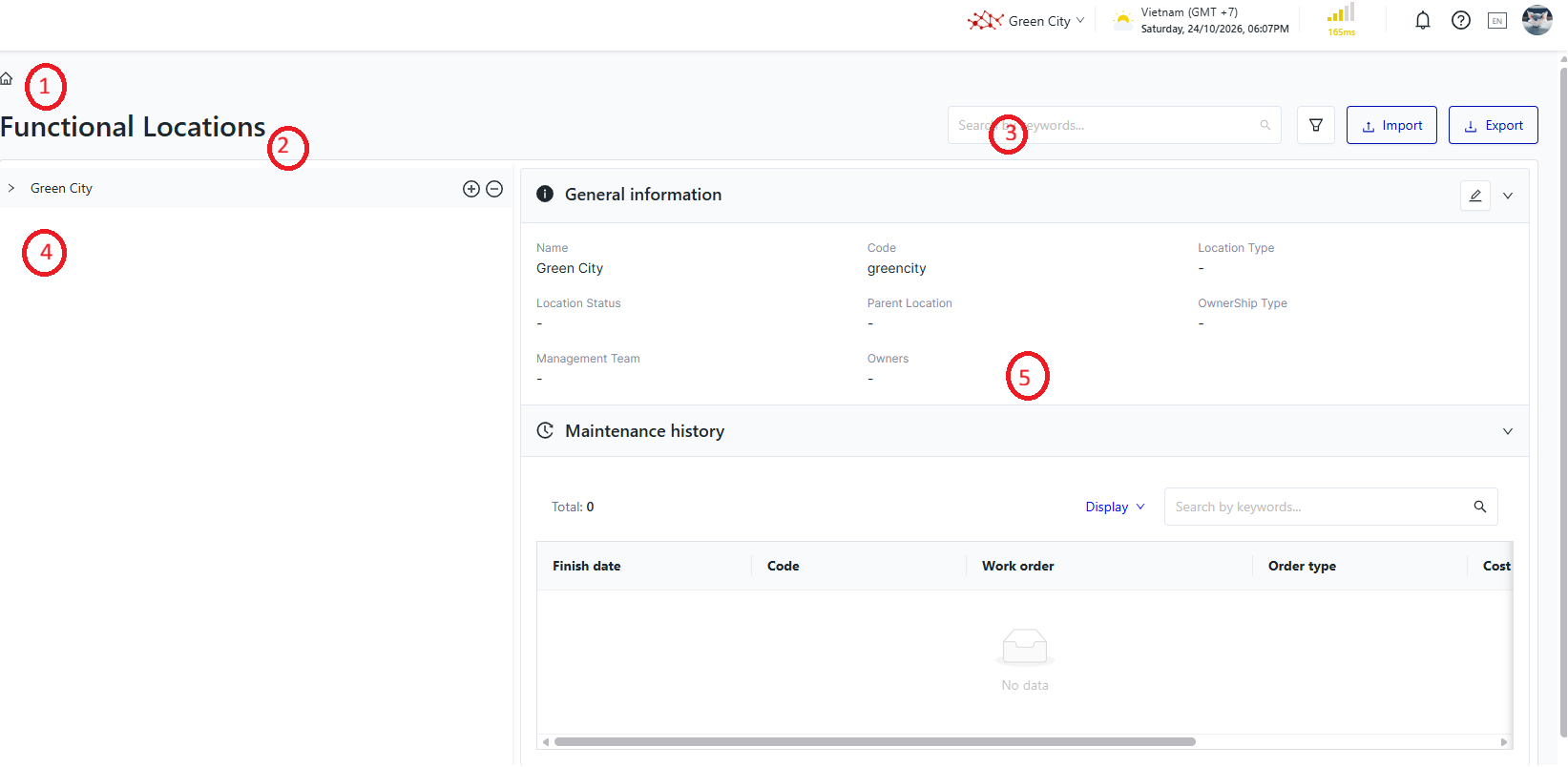
Details of the information displayed on the screen: ① Navigation Path: Displays the navigation path to the function screen. ② Function Screen Title: Displays the title of the current function screen. ③ Search and Filter Area: Contains the search and data filtering options. ④ Functional Area Tree: Displays the functional area hierarchy. ⑤ Functional Area Tree Details: Displays detailed information about the selected functional area in the tree. 2. Search for Functional Areas
Purpose: Search for functional areas in the system. Steps to Perform Step 1: The user accesses the Functional Area Management function in the Organization Management module, as described above. Step 2: Select the search icon. The system displays a list of available search criteria. 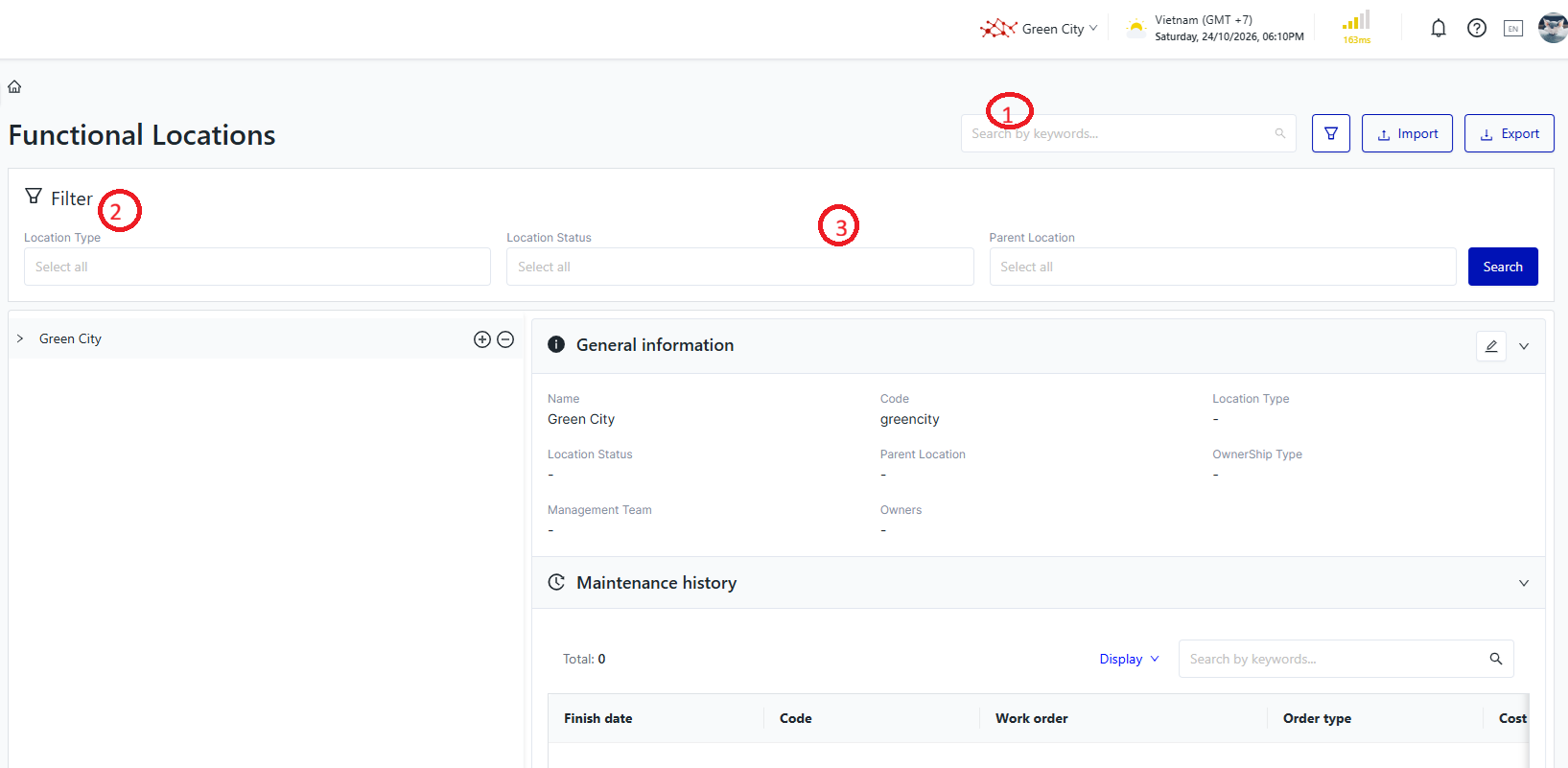
Details of the information displayed on the screen: ① Search and Filter Area
② Functional Area Name ③ Available Filter Criteria: Displays the filter criteria that users can select. ④ Action Button: Applies the filters and rebuilds the functional area tree when clicked. Step 3: Enter the search criteria and select Search. The system refreshes the functional area list to display functional areas matching the specified criteria. 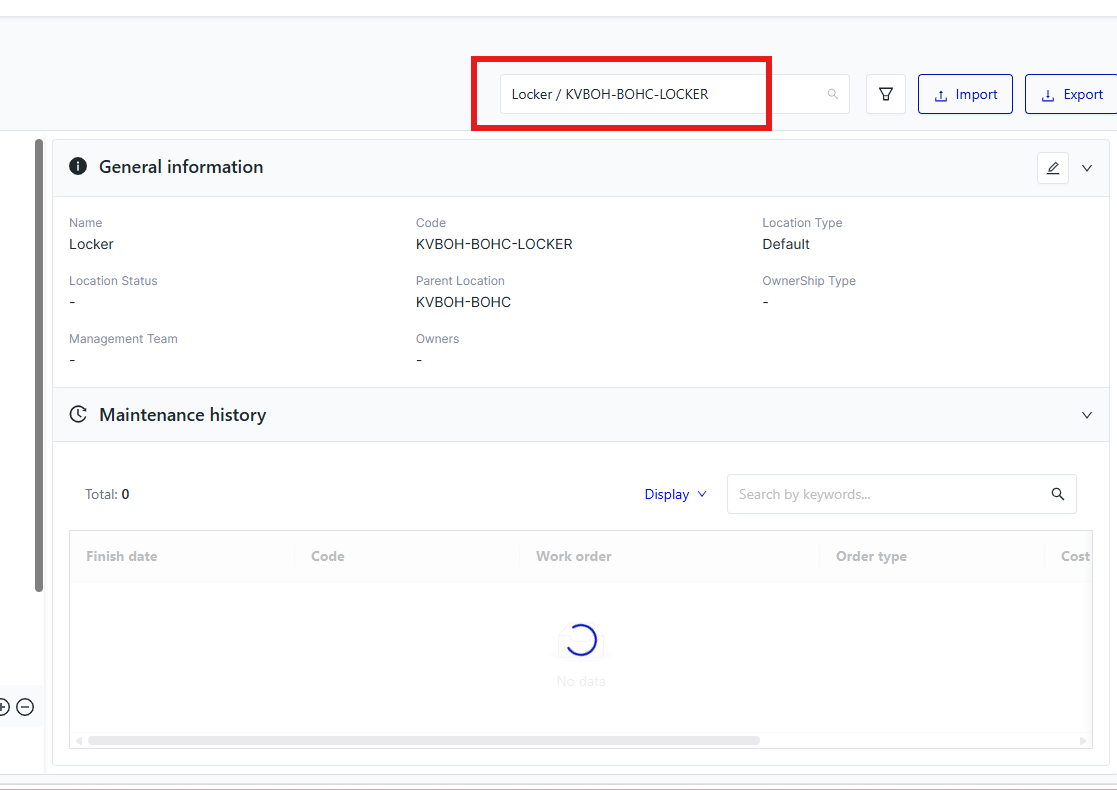
Details of the information displayed on the screen: ① Active Filter Criteria: Displays the filter criteria currently in use. ② Filtered Functional Area Tree: Displays the rebuilt functional area tree with nodes that match the filter criteria. ③ Automatically Selected Record: The first record in the list is automatically selected to display its details. ④ Selected Record Details: Displays detailed information about the first selected record. 3. View Functional Area Details
Purpose: View detailed information about a functional area. Steps to Perform Step 1: The user accesses the Functional Area Management function in the Organization Management module, as described above. Step 2: View the functional area details screen. Details of the information displayed on the screen: ① New Node Position: Displays the position of the new node in the functional area tree. ② Action Buttons
③ Node Name: Displays the name of the node being viewed. ④ Node Code: Displays the code of the node being viewed. The code must be unique and cannot be duplicated. ⑤ Area Type: Displays the area type of the node being viewed. See the Area Type Management section for more details. ⑥ Usage Status: Displays the usage status of the node being viewed. See the Area Status Management section for more details. ⑦ Parent Node Information: Displays the parent node of the node being viewed. This field is read-only and defaults to the value of the node where the ⊕ Add New function was selected. ⑧ Ownership: Displays the ownership information of the node being viewed. ⑨ Management Group: Displays the management group of the node being viewed. ⑩ Owner Information Section: Displays the name of the owner information section. ⑪ Add Owner Button: Allows the user to add new owner information. ⑫ Owner List: Displays the list of owners. 4. Add a Functional Area
Purpose: Add a functional area. Steps to Perform Step 1: The user accesses the Functional Area Management function in the Organization Management module, as described above. Step 2: Select Add New. The system opens the screen for adding a new functional area. 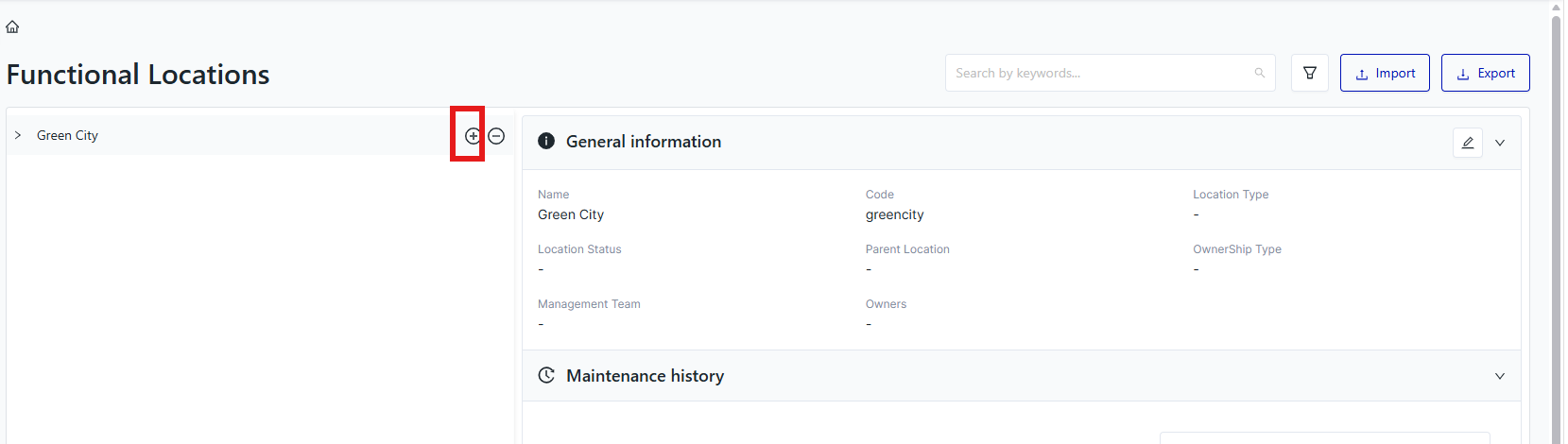
Step 3: Enter valid information. 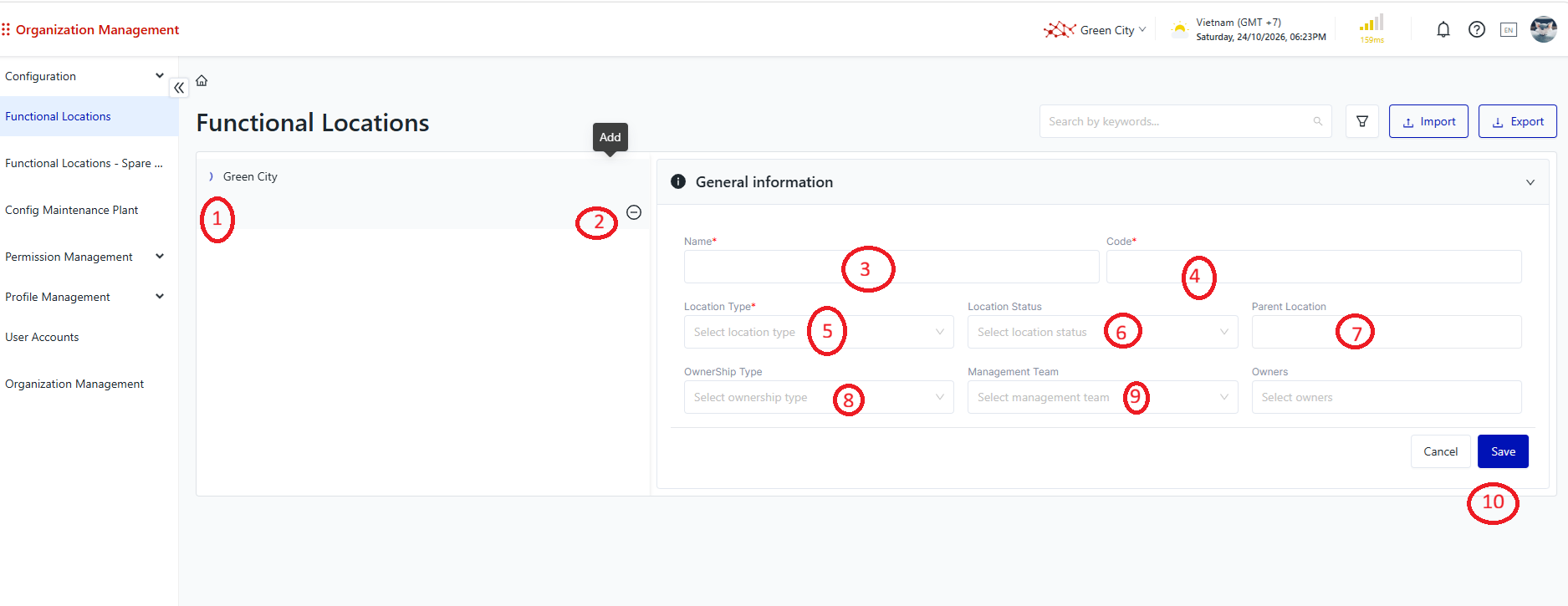
Details of the information displayed on the screen: ① New Node Position: Displays the position of the new node in the functional area tree. ② Action Button
③ Node Name: Allows the user to enter the name of the new node. ④ Node Code: Allows the user to enter a unique code for the new node. Duplicate codes are not allowed. ⑤ Area Type: Allows the user to select the area type of the new node. See the Area Type Management section for more details. ⑥ Usage Status: Allows the user to select the usage status of the new node. See the Area Status Management section for more details. ⑦ Parent Node Information: Displays the parent node of the new node. This field is read-only and defaults to the node where the ⊕ Add New function was selected. ⑧ Ownership: Allows the user to select the ownership of the new node. ⑨ Management Group: Allows the user to select the management group of the new node. ⑩ Action Buttons
Step 3: Enter valid data in the Add New screen. If any data is invalid, the system displays an error message corresponding to the issue, allowing the user to correct the data. Details of the information displayed on the screen: ① Example of Invalid Data: Shows an example of invalid data. ② Save Button: Once data has been entered or selected, the system displays the Save button, allowing the user to save the information. Step 4: Save the information. The system validates the entered data. If the data is valid, the system displays a success message, and the newly created functional area appears in the functional area tree.
5. Edit a Functional Area
Purpose: Edit an existing functional area in the functional area tree. Steps to Perform Step 1: The user accesses the Functional Area Management function in the Organization Management module, as described above. Step 2: Select the functional area whose information needs to be edited. The system opens the functional area editing screen. Step 3: Enter valid data in the Edit Information screen. If any data is invalid, the system displays an error message corresponding to the issue, allowing the user to correct the data. Step 4: Save the information. The system validates the entered data. If the data is valid, the system displays a success message, and the information is updated immediately. 6. Delete a Functional Area
Purpose: Delete an existing functional area from the functional area tree. A functional area can only be deleted if it has no associated data. Steps to Perform Step 1: The user accesses the Functional Area Management function in the Organization Management module, as described above. Step 2: Select the functional area to be deleted, then select Delete ⊝. 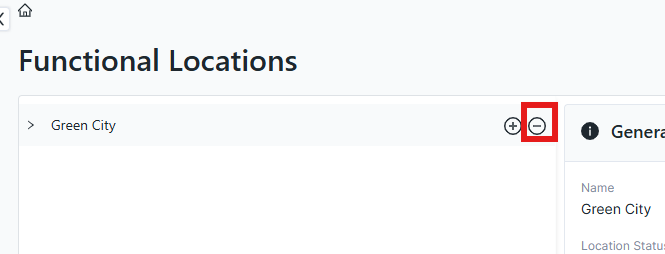
The system displays a confirmation dialog asking the user to confirm the deletion. Step 3: Confirm the deletion by selecting Yes, Delete. The system performs a soft deletion of the information. The deleted node will no longer be visible in the system. |
Remarks
|
N/A
|