Screen Name
|
User Accounts
|
Open Link
|
Login – Organization Management – User Accounts
|
Summary
|
|
Create and manage the list of system users |
Screen
|
|
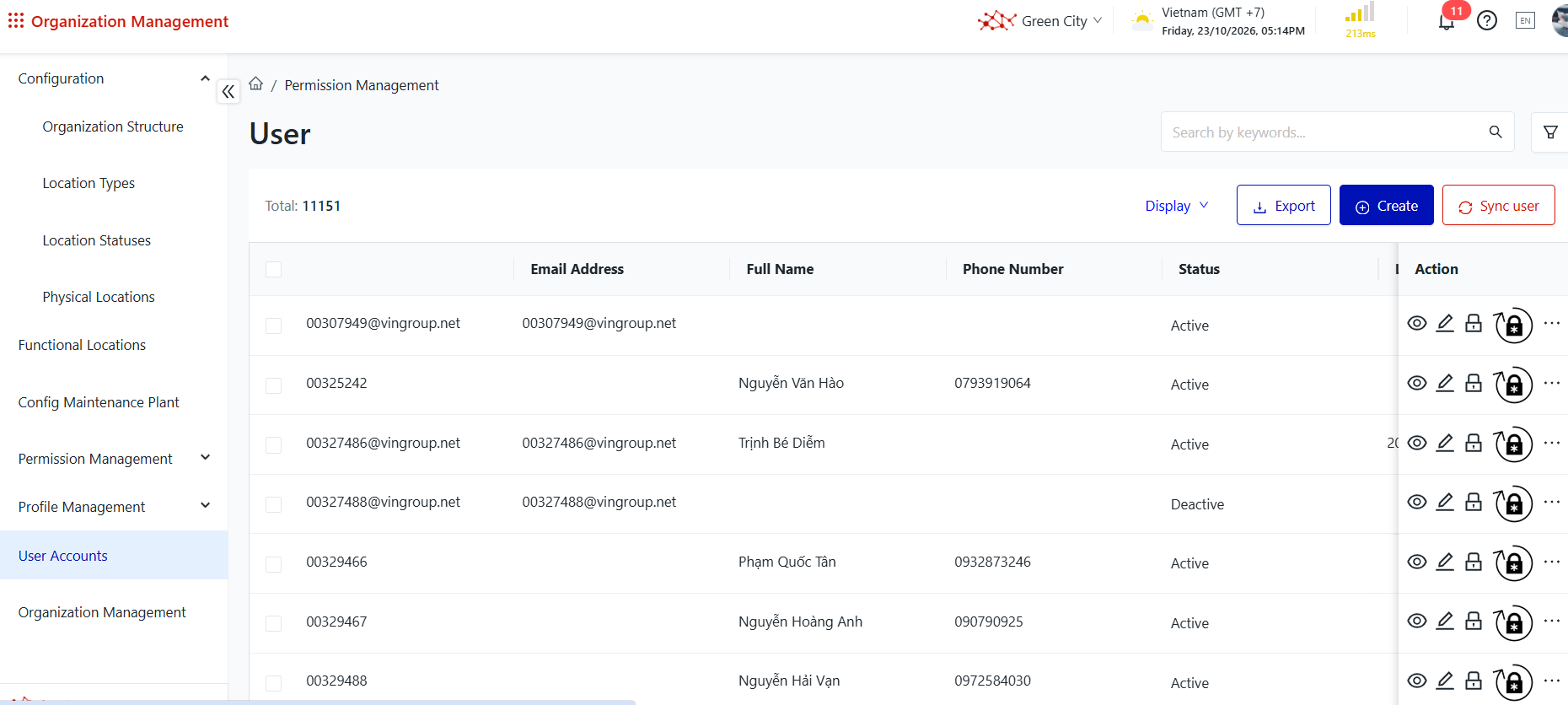
|
Fields Description
|
teps to Perform
Step 1: The user accesses the User Management function as shown below. Alternatively, the user can access the function directly via the following link: User Management. 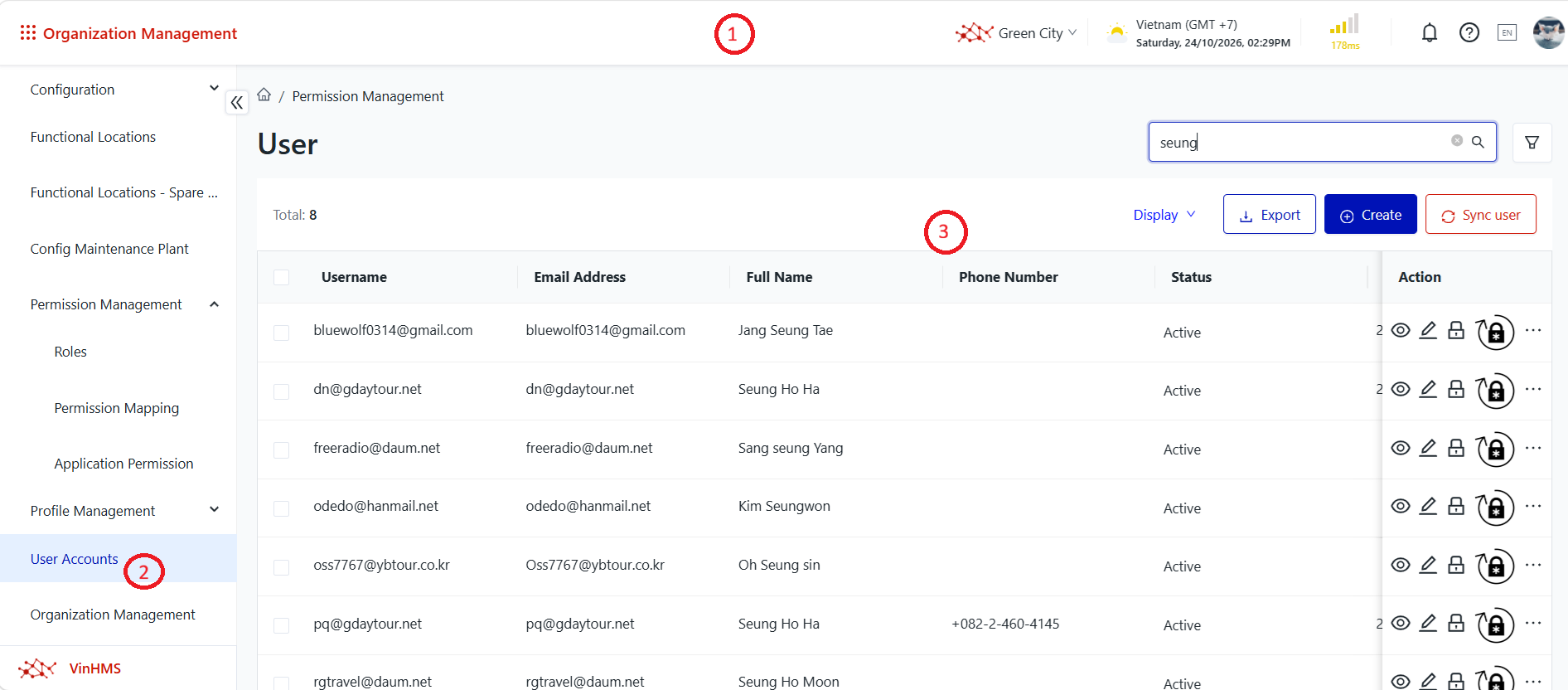
① Header: Contains configuration information related to the logged-in account. ② Menu: Contains a list of functions that the user is authorized to access within the module. ③ Business Operation Area: Displays business information and provides related operations. 1. View the User List
Purpose: View the list of users. Steps to Perform Step 1: The user accesses the User Management function in the Organization Management module, as described above. Step 2: View the user list screen. 2. Search for Users
Purpose: Search for users in the system. Steps to Perform Step 1: The user accesses the Organization Management module and the relevant function, as described above. Step 2: Select the search icon. The system displays a list of available search criteria. 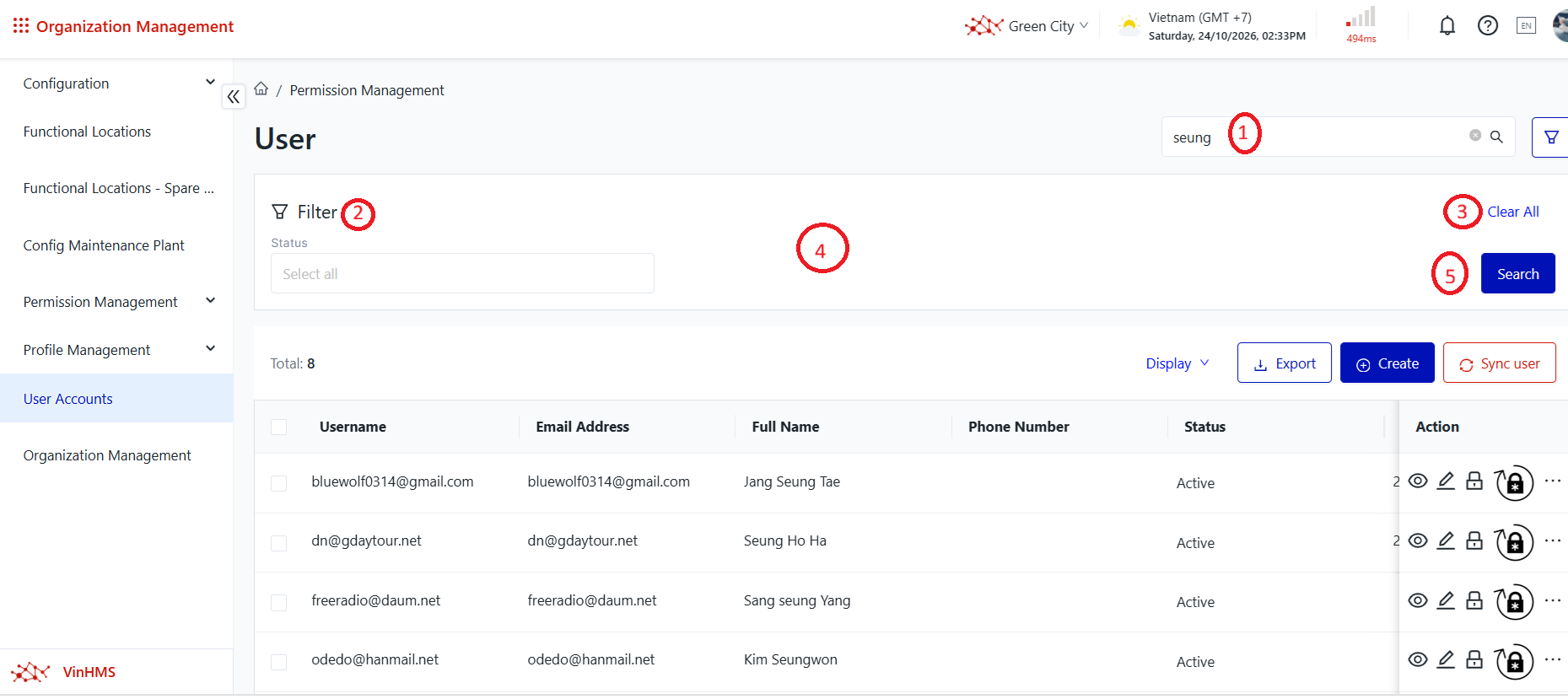
Details of the information displayed on the screen: ① Search and Filter Area
② Function Area Title ③ Additional Functions
④ List of Available Filter Criteria: Displays the filter criteria that users can select. ⑤ Action Button: Applies the filters and rebuilds the organizational structure tree when clicked. Step 3: Enter the search criteria and select Search. The system refreshes the user list to display users matching the specified criteria. 3. View User Details
Purpose: View detailed information about a user. Steps to Perform Step 1: The user accesses the User Management function in the Organization Management module, as described above. Step 2: Select the user whose details you want to view from the user list. 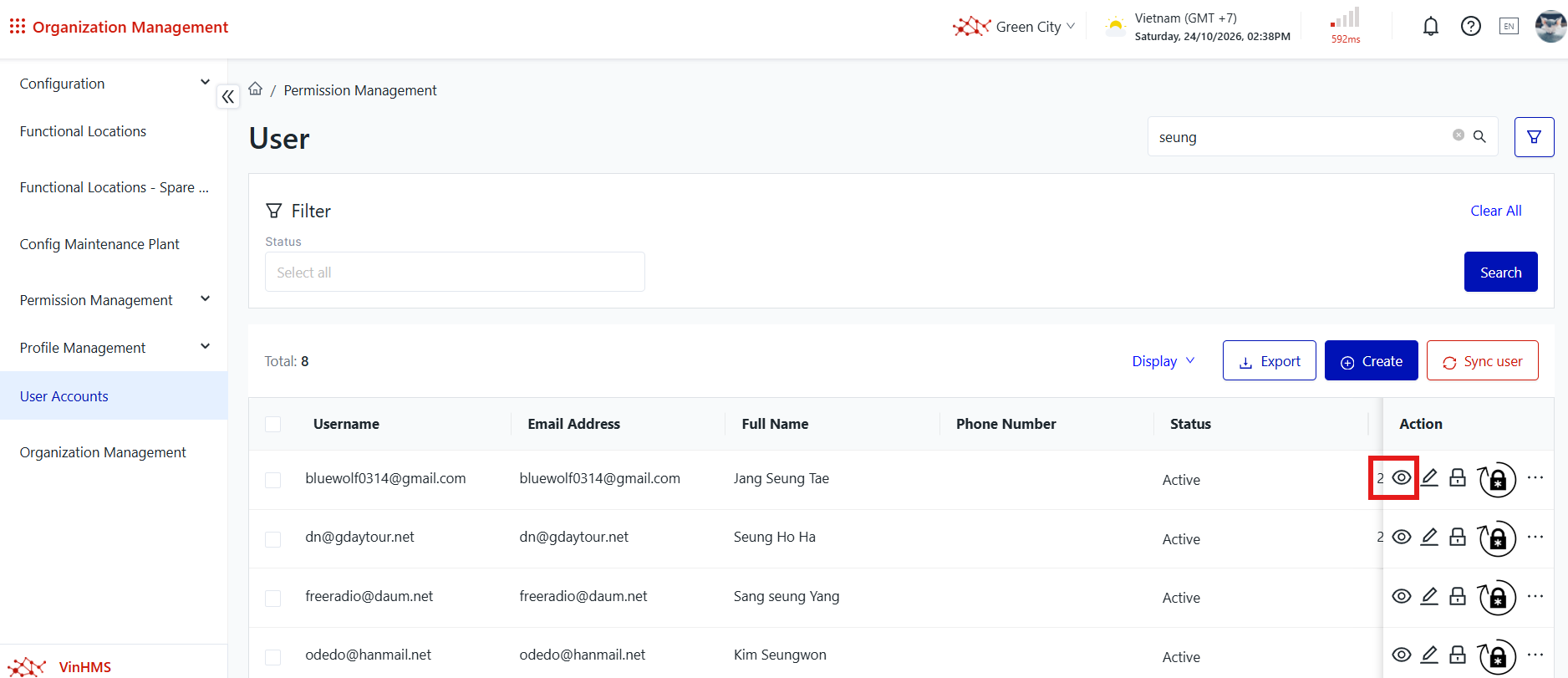
Step 3: View the user's details screen. 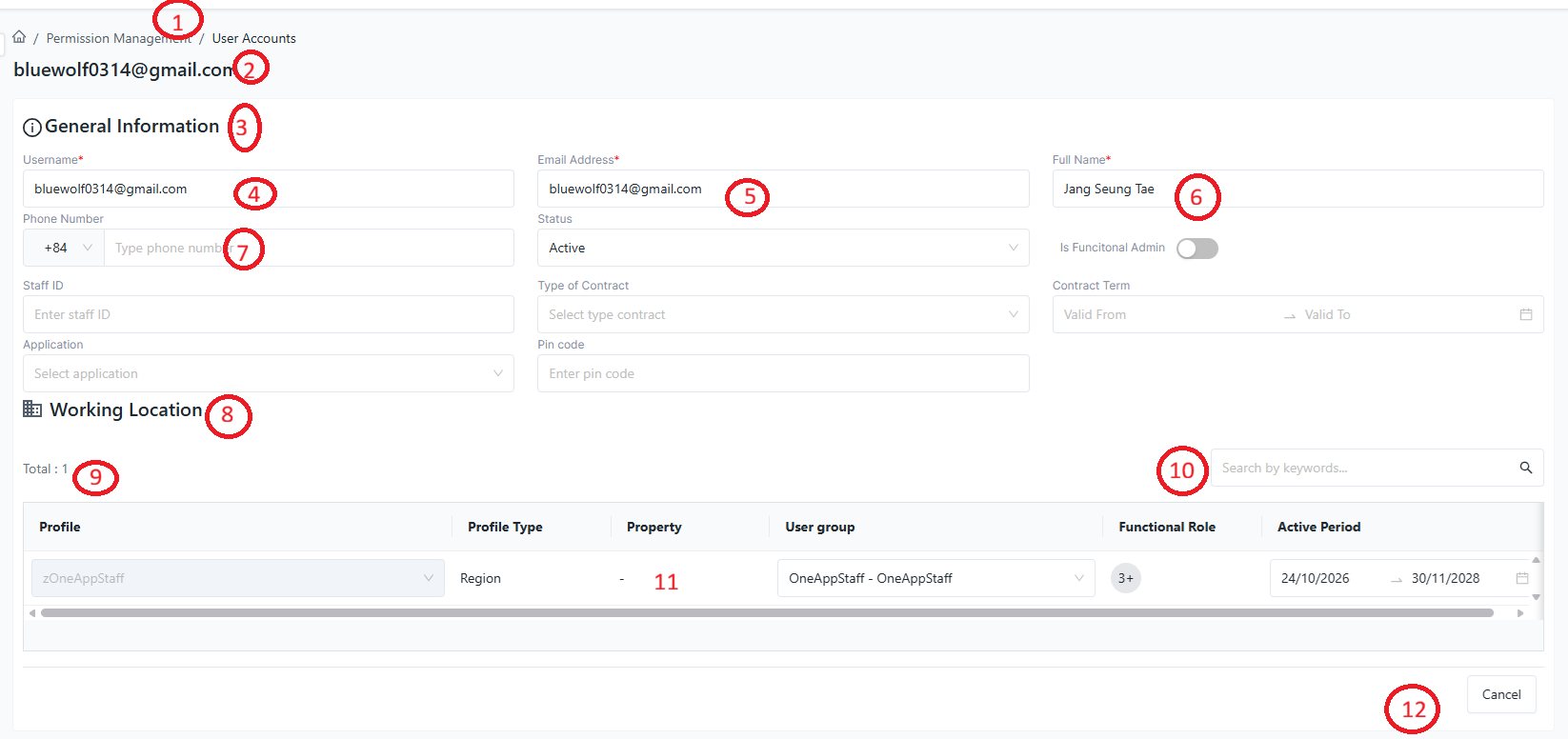
Details of the information displayed on the screen: ① Navigation Path: Displays the navigation path to the information screen. ② Username: Displays the username of the user whose details are being viewed. ③ Information Group Name ④ Email Address: Displays the email address of the user whose details are being viewed. ⑤ Full Name: Displays the full name of the user whose details are being viewed. ⑥ User Status: Displays the current status of the user account. ⑦ Phone Number: Displays the phone number of the user whose details are being viewed. ⑧ Information Group Name ⑨ Record Count: Displays the number of records associated with the user whose details are being viewed. ⑩ Profile List Search Box: Allows users to filter or search for profiles associated with the user whose details are being viewed. ⑪ Associated Profile List: Displays the profiles associated with the user whose details are being viewed. ⑫ Action Button
4. Add a User
Purpose: Add a new user to the system and create a corresponding login account. Steps to Perform Step 1: The user accesses the User Management function in the Organization Management module, as described above. Step 2: Select ⊕ Create. The system opens the screen for adding a new user. 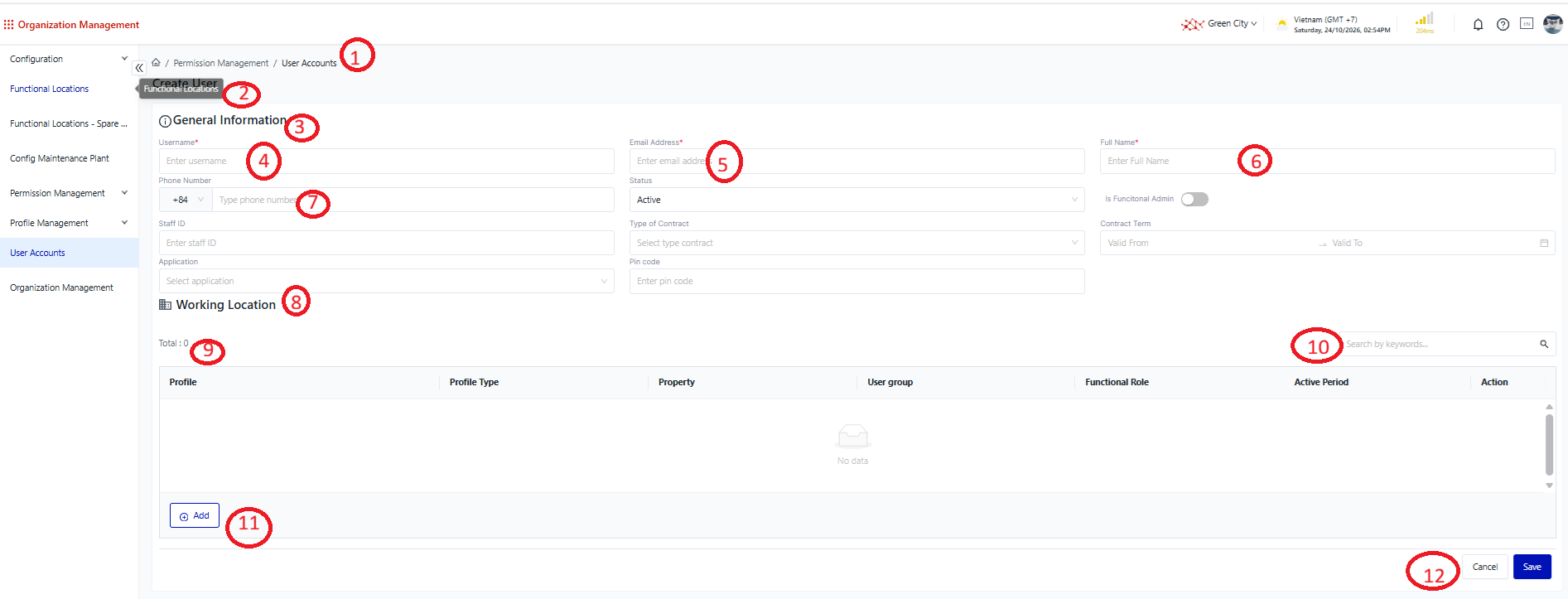
Details of the information displayed on the screen:
① Navigation Path: Displays the navigation path to the user creation screen. ② Username: The username being created. ③ Information Group Name ④ Email Address: The email address of the user being created. ⑤ Full Name: The full name of the user being created. ⑥ User Status: The usage status of the user being created. ⑦ Phone Number: The phone number of the user being created. ⑧ Information Group Name ⑨ Record Count: Displays the number of records associated with the user being created. ⑩ Profile List Search Box: Allows users to filter or search for profiles associated with the user being created. ⑪ Action Buttons
⑫ Action Buttons
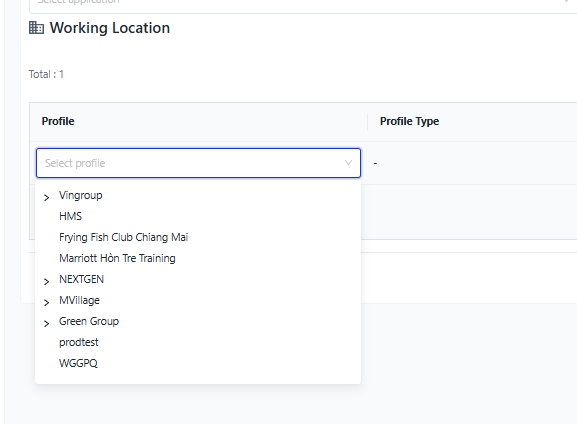
Details of the information displayed on the screen: ① Profile Selection: Allows users to select profiles to assign to the user being created. ② Organization Structure Tree: Displays the organizational structure that the user is authorized to view. 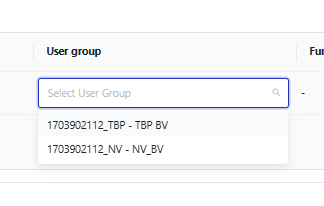
Details of the information displayed on the screen: ① User Group Selection: Allows users to select a user group. ② User Group List: Displays the user groups associated with the profile selected above. Step 3: Enter valid information in the creation form. If any data is invalid, the system displays an error message corresponding to the issue, allowing the user to correct the information. Step 4: Save the information. The system validates the entered data. If all information is valid, the system displays a success message, and the newly created user appears in the user list according to the current filter criteria. 5. Edit User Information
Purpose: Edit the information of an existing user in the user list. Steps to Perform 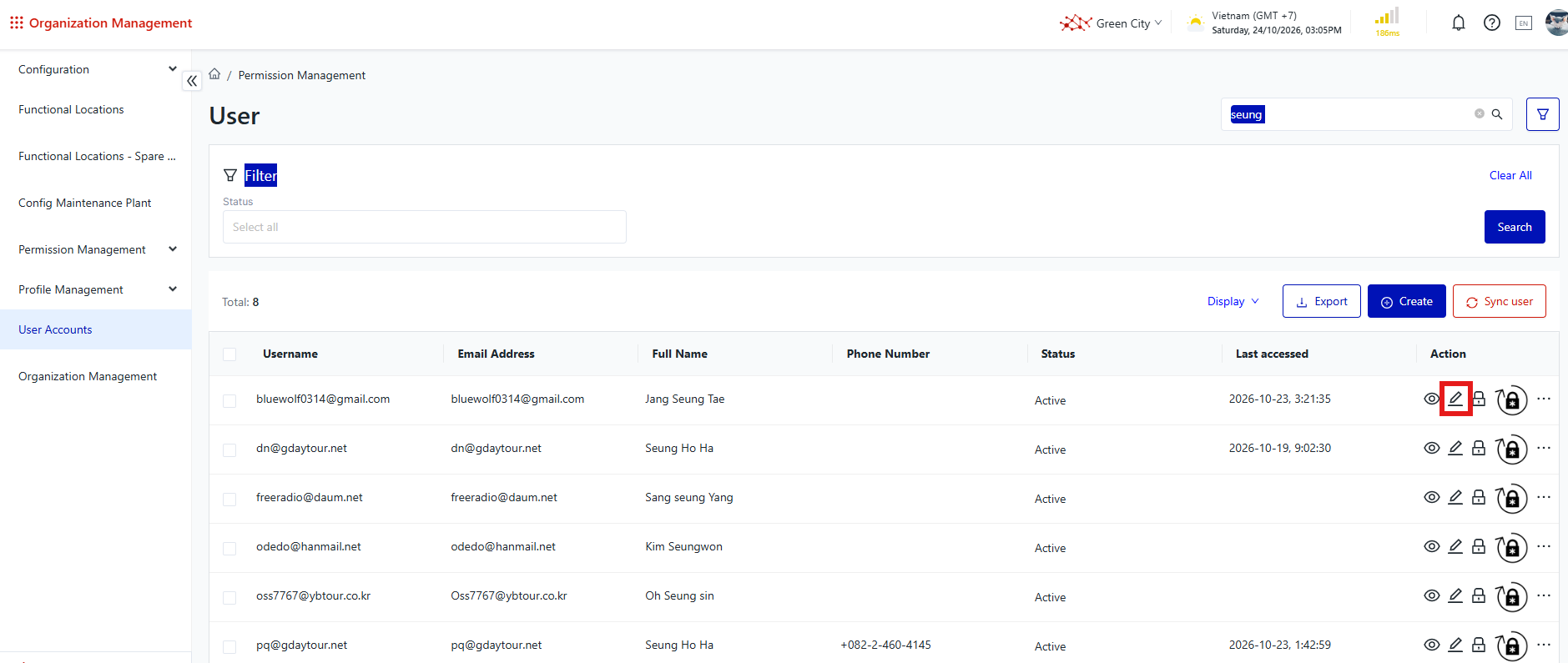
Step 1: The user accesses the User Management function in the Organization Management module, as described above. Step 2: Select the user whose information needs to be edited. The system opens the user information editing screen. Details of the information displayed on the screen: ① Navigation Path: Displays the navigation path to the editing screen for the selected user. ② Username: Displays the username of the user selected for editing. ③ Information Group Name ④ Email Address: Displays the email address of the user selected for editing. ⑤ Full Name: Displays the full name of the user selected for editing. ⑥ User Status: Displays the usage status of the user selected for editing. ⑦ Phone Number: Displays the phone number of the user selected for editing. ⑧ Information Group Name ⑨ Record Count: Displays the number of records associated with the user selected for editing. ⑩ Profile List Search Box: Allows users to filter or search for profiles associated with the user selected for editing. ⑪ Associated Profile List: Displays the profiles associated with the user selected for editing.
⑫ Action Button
⑬ Action Button
⑭ Action Buttons
Step 3: Enter valid information in the editing form. If any data is invalid, the system displays an error message corresponding to the issue, allowing the user to correct the information.
Step 4: Save the information. The system validates the entered data. If all information is valid, the system displays a success message, and the user's information is updated immediately.
6. Download the User List
Purpose: Download the user list based on the filter criteria applied on the user list screen. Steps to Perform Step 1: The user accesses the User Management function in the Organization Management module, as described above. Step 2: Select Download. The system exports the user list according to the filter criteria applied on the screen. Once the export is complete, the system sends a notification to the user through the Messages section.
Step 3 – Case 1: The user remains on the download screen. The system returns the file, and the browser automatically displays the download screen or downloads the user list to the local device. Step 3 – Case 2: The user has left the download screen. The user selects the link in the notification and clicks Download. The system returns the file, and the browser automatically displays the download screen or downloads the user list to the local device.
7. Automatic Locking and Unlocking of User Access
Purpose: Automatically lock or unlock a user's access according to the system's security rules. Steps to Perform
Rules for Automatically Locking and Unlocking User Access
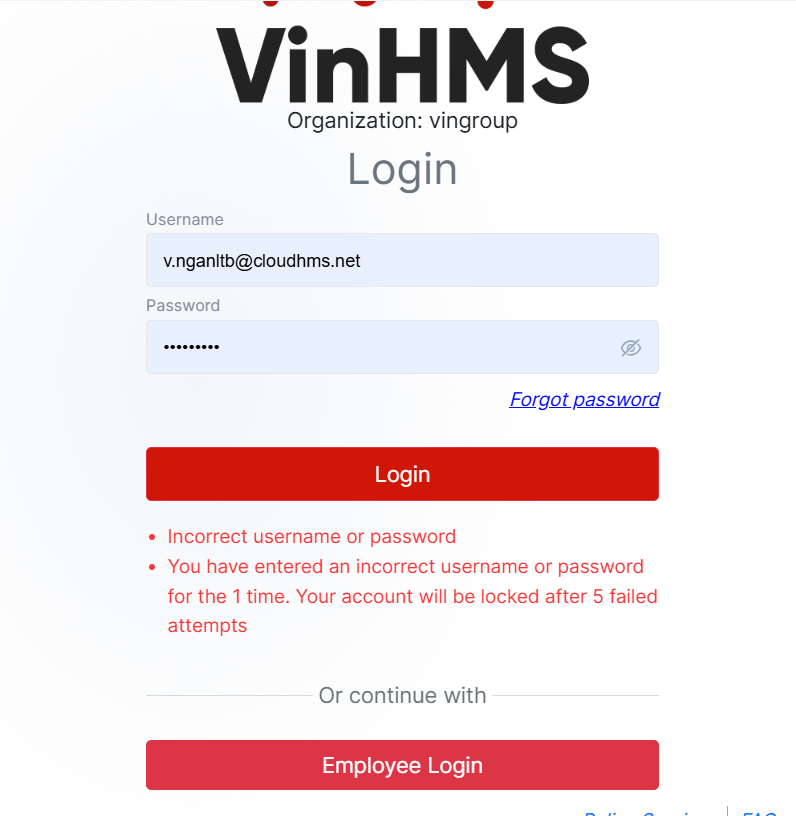
=> Emloyee login: Log in using the company's identity account. Details of the information displayed on the screen: ① Account Lockout Error Message: Displays an error message indicating that the account has been locked. 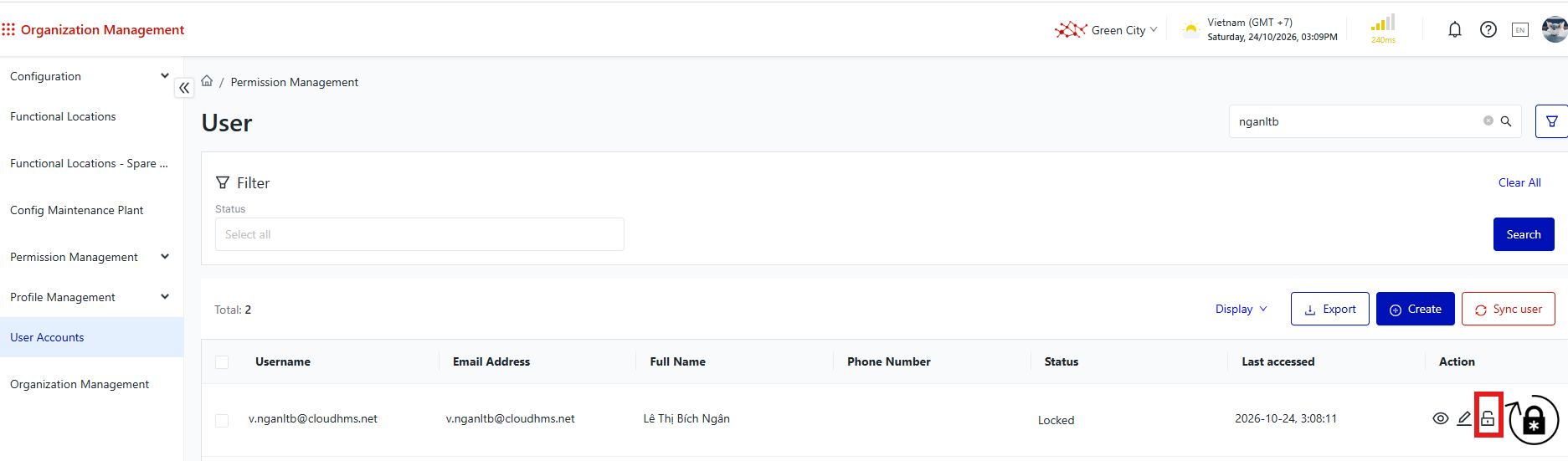
Details of the information displayed on the screen: ① Record Status ② Unlock Icon and Function: Select this option to unlock the user's account. 8. Unlock User Access
Purpose: Unlock a user's account before the automatic unlock time when the account is currently locked. Steps to Perform Step 1: The user accesses the User Management function in the Organization Management module, as described above. Step 2: Select the user whose account needs to be unlocked, then select Unlock. The system displays an unlock confirmation screen. Details of the information displayed on the screen:
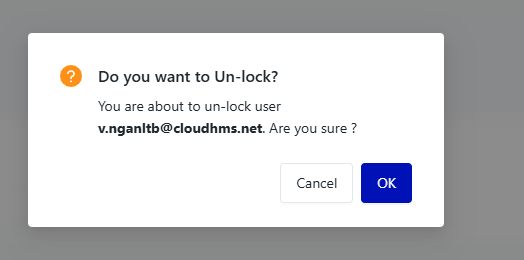
Details of the information displayed on the screen: ① Confirmation Title and Icon ② Confirmation Message: Displays the action that requires confirmation. ③ Action Buttons
Step 3: Confirm the unlock operation by selecting Yes. The system unlocks the user's account, allowing them to access the system normally. |
Remarks
|
N/A
|