Screen Name
|
Permission Mapping
|
Open Link
|
Login – Organization Management – Permission - Permission Mapping
|
Summary
|
|
Build and manage the list of access permissions in the system. |
Screen
|
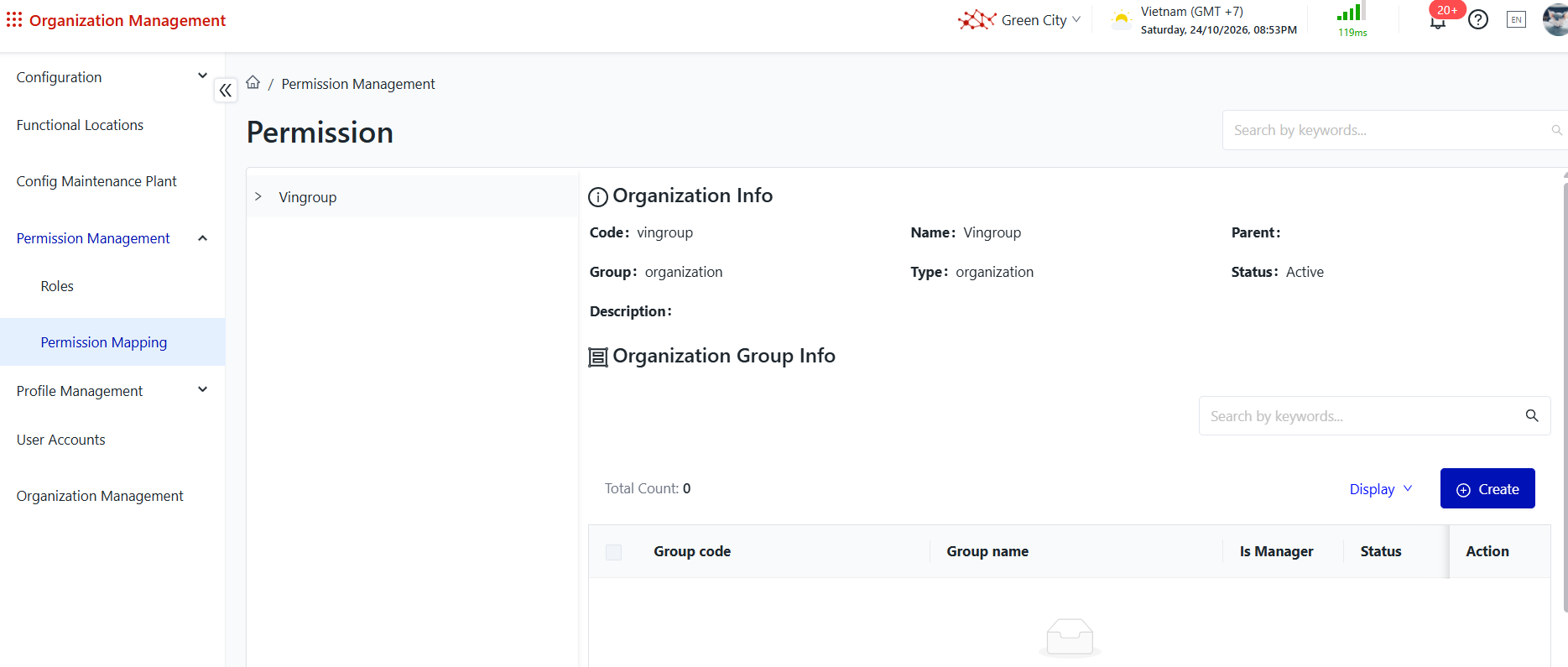
|
Fields Description
|
Steps to Perform
Step 1: The user accesses the Permission Management function as shown below. Alternatively, the user can access the function directly via the following link: Permission Management. 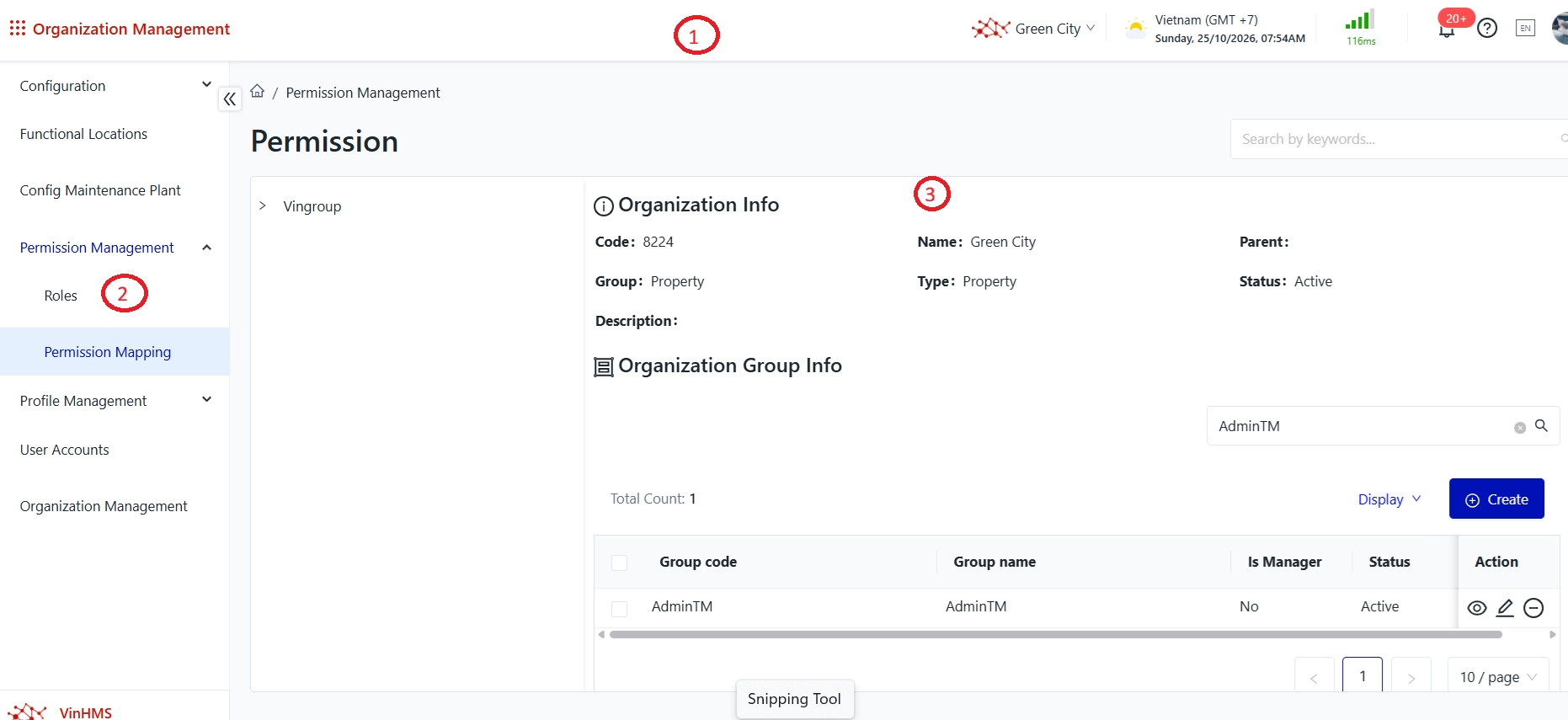
Details of the information displayed on the screen: ① Header: Contains configuration information related to the logged-in account. ② Menu: Contains a list of functions that the user is authorized to access within the module. ③ Business Operation Area: Displays business information and provides related operations. 1. View the Functional Permission List
Purpose: View the list of functional permissions configured in the system. Steps to Perform Step 1: The user accesses the Permission Management function in the Organization Management module, as described above. Step 2: View the functional permission screen. 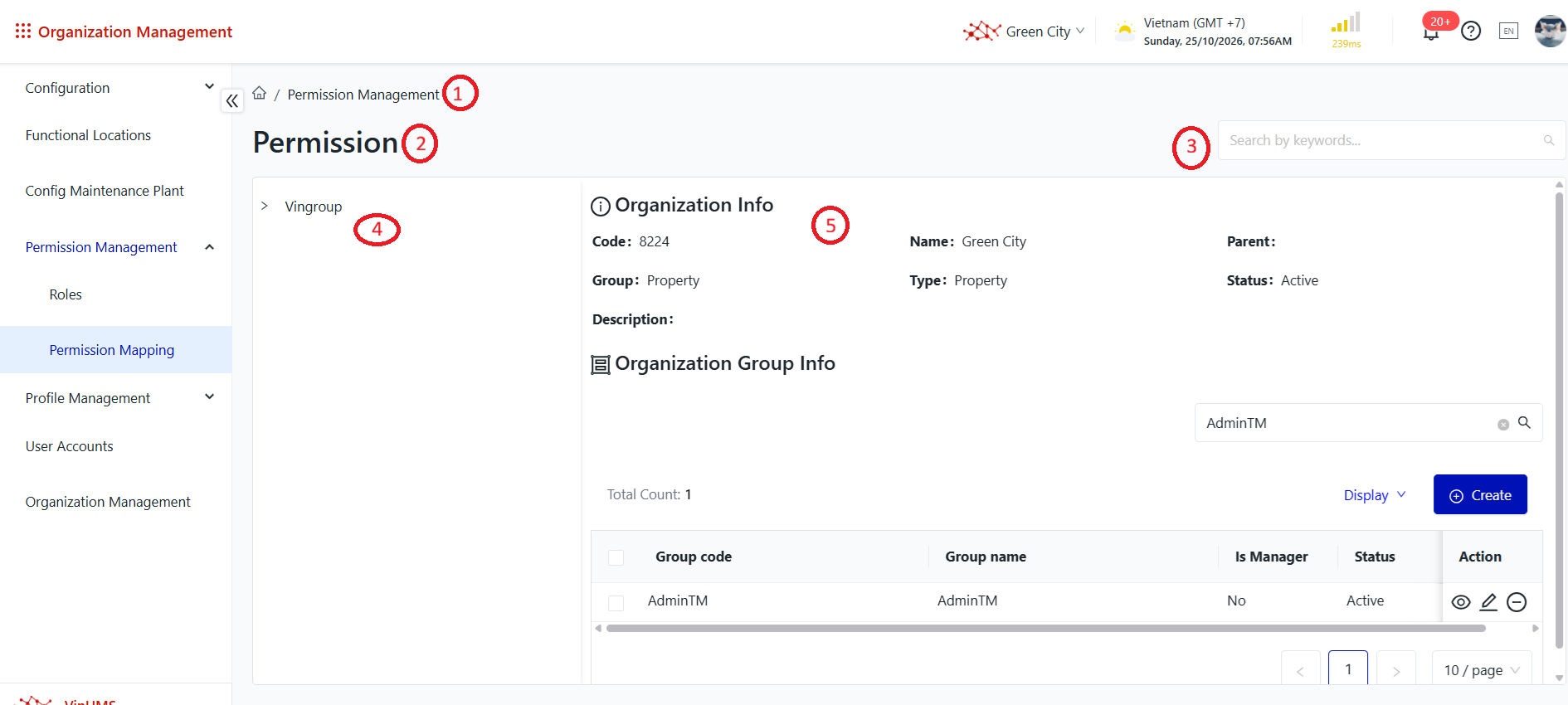
Details of the information displayed on the screen: ① Navigation Path: Displays the navigation path to the function screen. ② Function Screen Title: Displays the title of the current function screen. ③ Search and Filter Area: Contains the search and data filtering options. ④ Organization Structure Tree: Displays the organization structure tree. ⑤ Permission Details Area: Displays detailed information about the selected permission. 2. Search for Permissions
Purpose: Search for functional permissions in the system. Steps to Perform Step 1: The user accesses the Permission Management function in the Organization Management module, as described above. Step 2: Enter the search criteria and select Search. The system refreshes the permission list to display permissions matching the specified criteria. 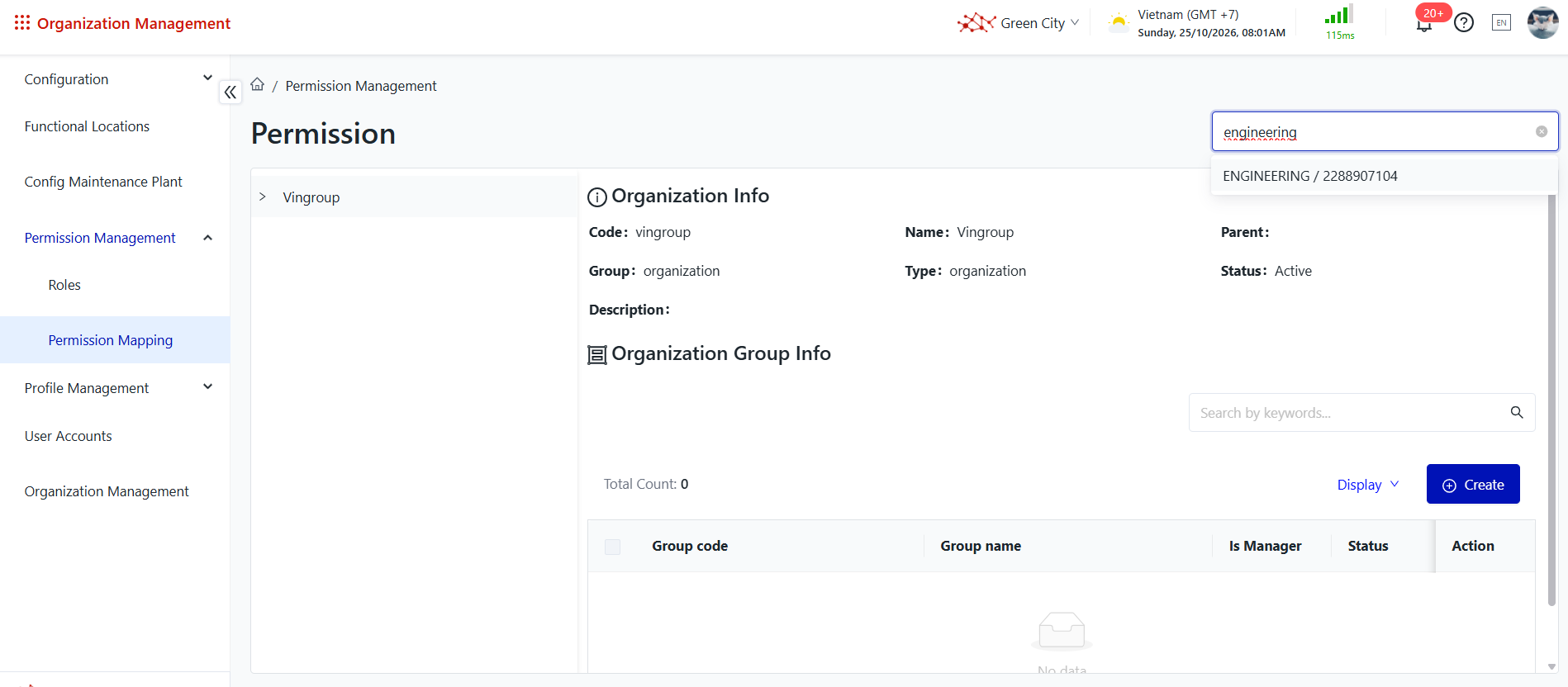
3. View Functional Permission Details
Purpose: View detailed information about a functional permission. Steps to Perform Step 1: The user accesses the Permission Management function in the Organization Management module, as described above. Step 2: View the functional permission details screen. 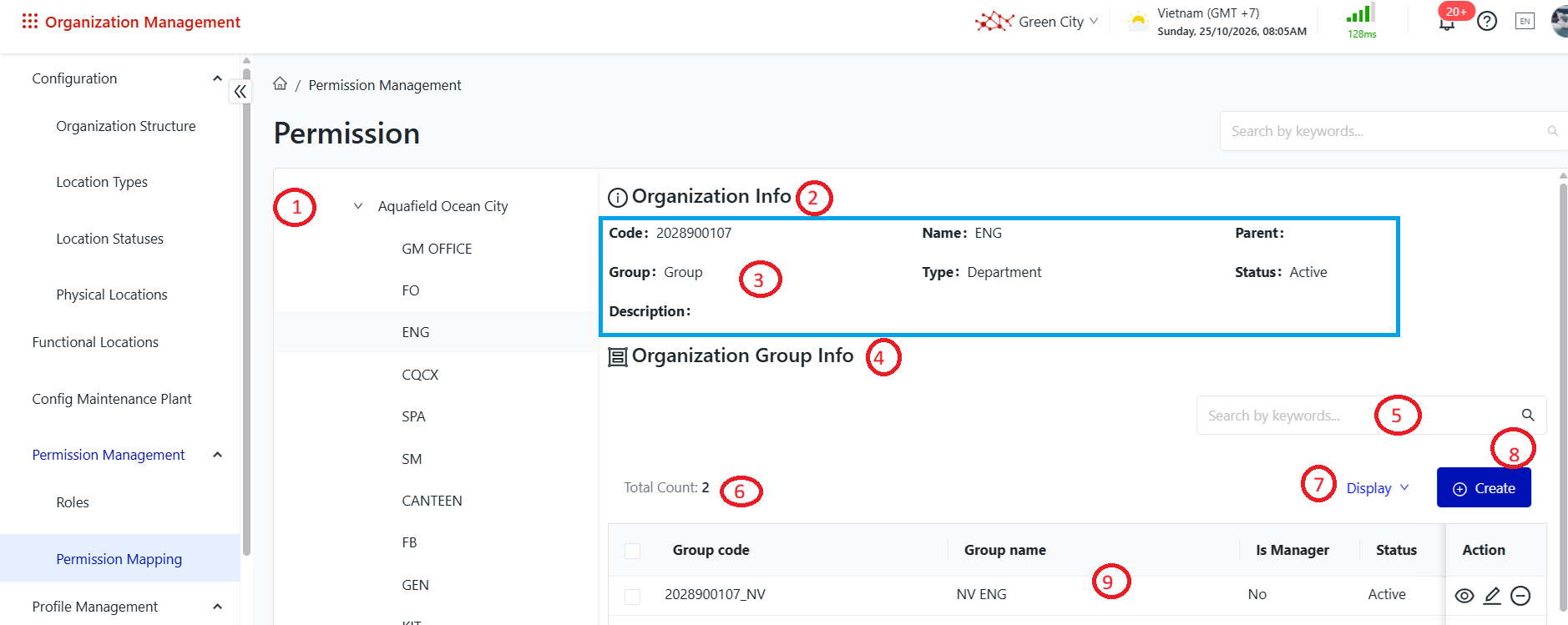
Details of the information displayed on the screen: ① Organization Structure Node Name: Displays the name of the node in the organization structure tree. ② Data Area Information Label ③ Selected Organization Structure Node Details: Displays detailed information about the selected node in the organization structure tree. This information cannot be edited on this screen, including:
④ Data Area Information Label ⑤ Created User Group Search Box: Allows users to search for user groups by code or name. ⑥ Selected/Total Record Count: Displays the number of selected records out of the total number of user group records associated with the unit profile. ⑦ Action Button
⑧ Action Button
⑨ User Group List: Displays the list of user groups.
4. Add a Permission
Purpose: Add a permission. Steps to Perform Step 1: The user accesses the Permission Management function in the Organization Management module, as described above. Step 2: Select ⊕ Create. The system opens the screen for adding a new permission. 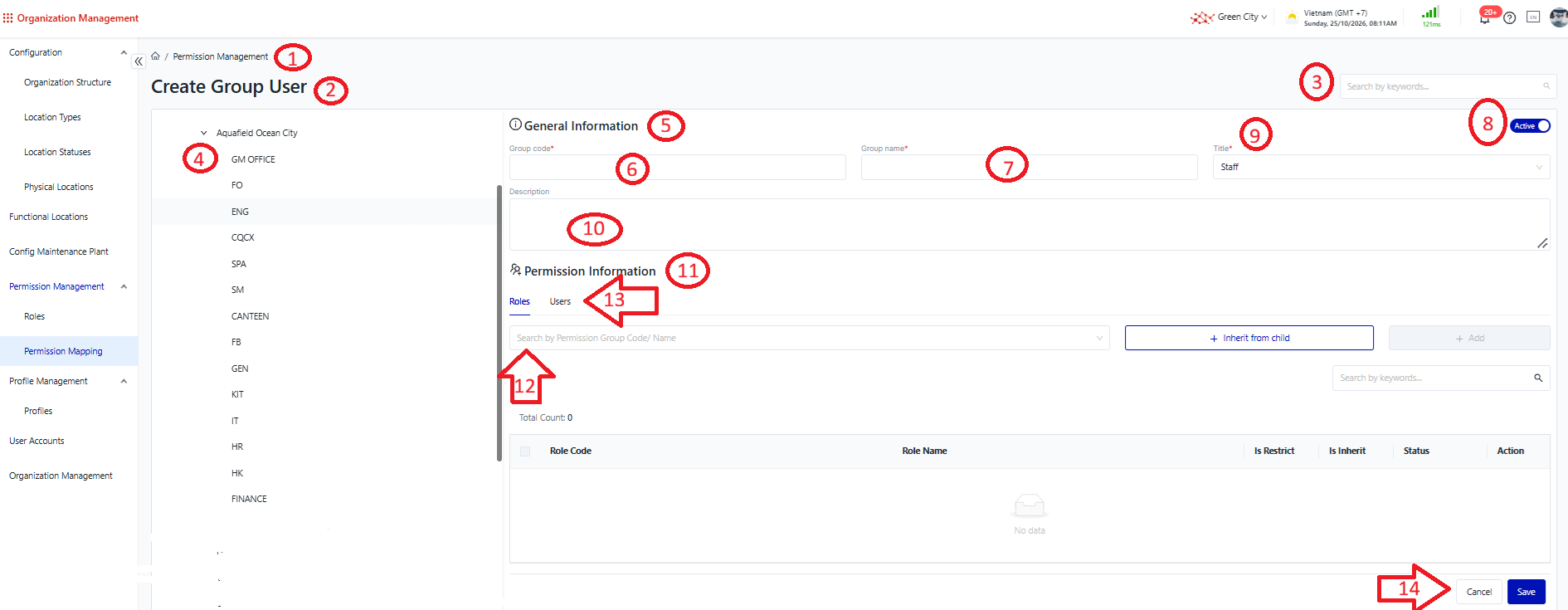
Details of the information displayed on the screen: ① Navigation Path: Displays the navigation path to the function screen. ② Function Title: Displays the name of the current function. ③ User Group Search Box: Allows users to search for existing user groups by code or name. ④ Selected Unit Position: Displays the position of the selected unit in the organization structure tree, under which the user group list is being created. ⑤ User Group Information Section ⑥ User Group Code: The code of the user group. ⑦ User Group Name: The name of the user group. ⑧ User Group Status: Allows users to change the status of the user group. The default status is Active.
⑨ Management Group Indicator: Indicates whether the user group is a management group. This setting is used for approval-related processes and is unchecked by default.
⑩ Description: Allows users to enter additional information about the user group. ⑪ User Group Information Section ⑫ Functional Permissions Tab: Displays the list of functional permissions assigned to the user group. ⑬ User List Tab: Displays the list of existing users in the system. See the section below for more details. ⑭ Action Buttons
Step 3: Enter valid information on the Add New screen. If any information is invalid, the system will display an error message corresponding to the issue, allowing the user to correct it. Step 4: Save the information. The system will validate the entered information. If all information is valid, the system will display a success message, and the newly created functional permission will appear in the Functional Permission List. 5. Edit Functional Permission Information
Purpose: To edit an existing functional permission in the system. Steps to Perform Step 1: Navigate to Permission Management in the Organization Structure Management module, as described above. Step 2: Select the functional permission whose information you want to edit. The system will open the Edit Functional Permission screen.
Step 3: Enter valid information on the Edit Functional Permission screen. If any information is invalid, the system will display an error message corresponding to the issue, allowing the user to correct it.
Step 4: Save the information. The system will validate the entered information. If all information is valid, the system will display a success message, and the changes will be updated immediately.
|
Remarks
|
N/A
|