Screen Name
|
Permission Mapping
|
Open Link
|
Login – Organization Management – Permission - Roles
|
Summary
|
|
Build and manage the list of user functional permissions in the system. |
Screen
|
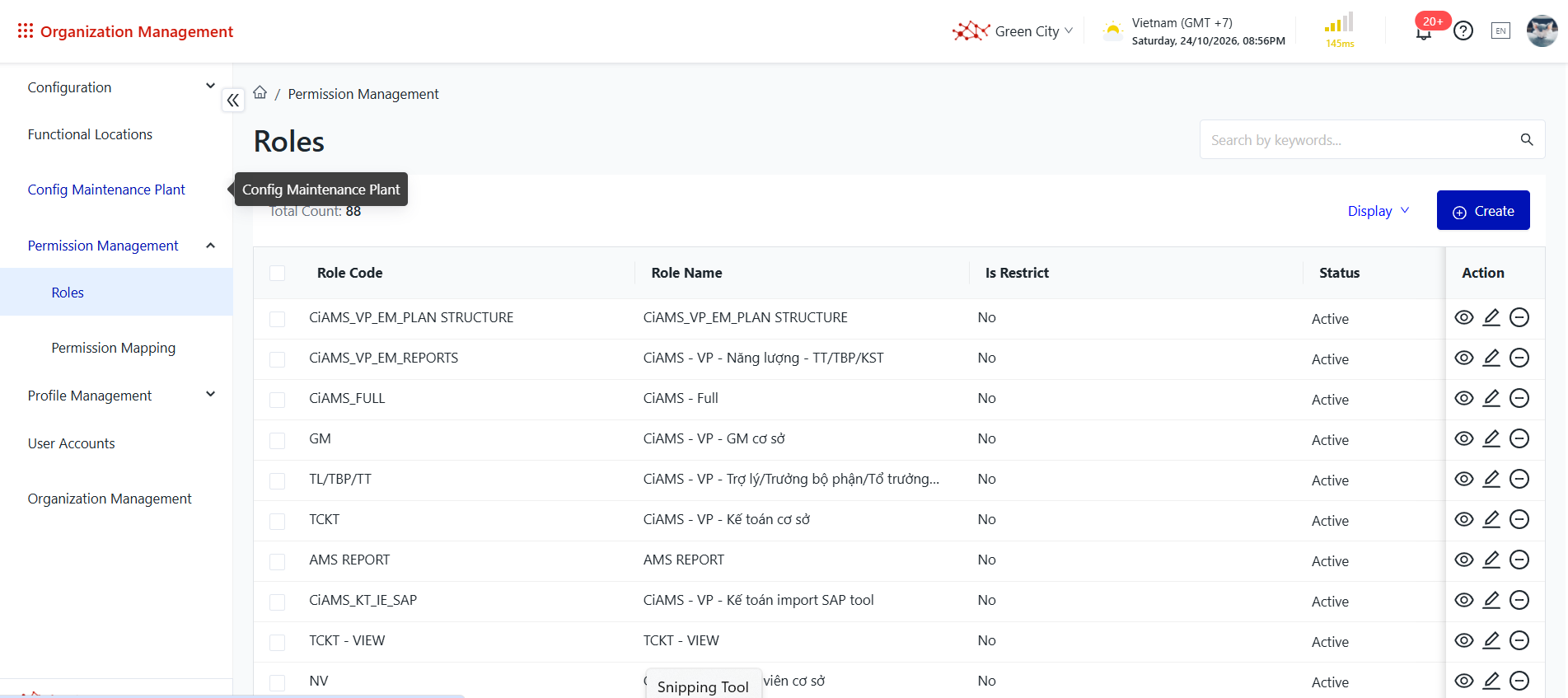
Steps to Perform Step 1: The user accesses the Functional Role Management function as shown below. Alternatively, the user can access the function directly via the following link: Functional Role Management. 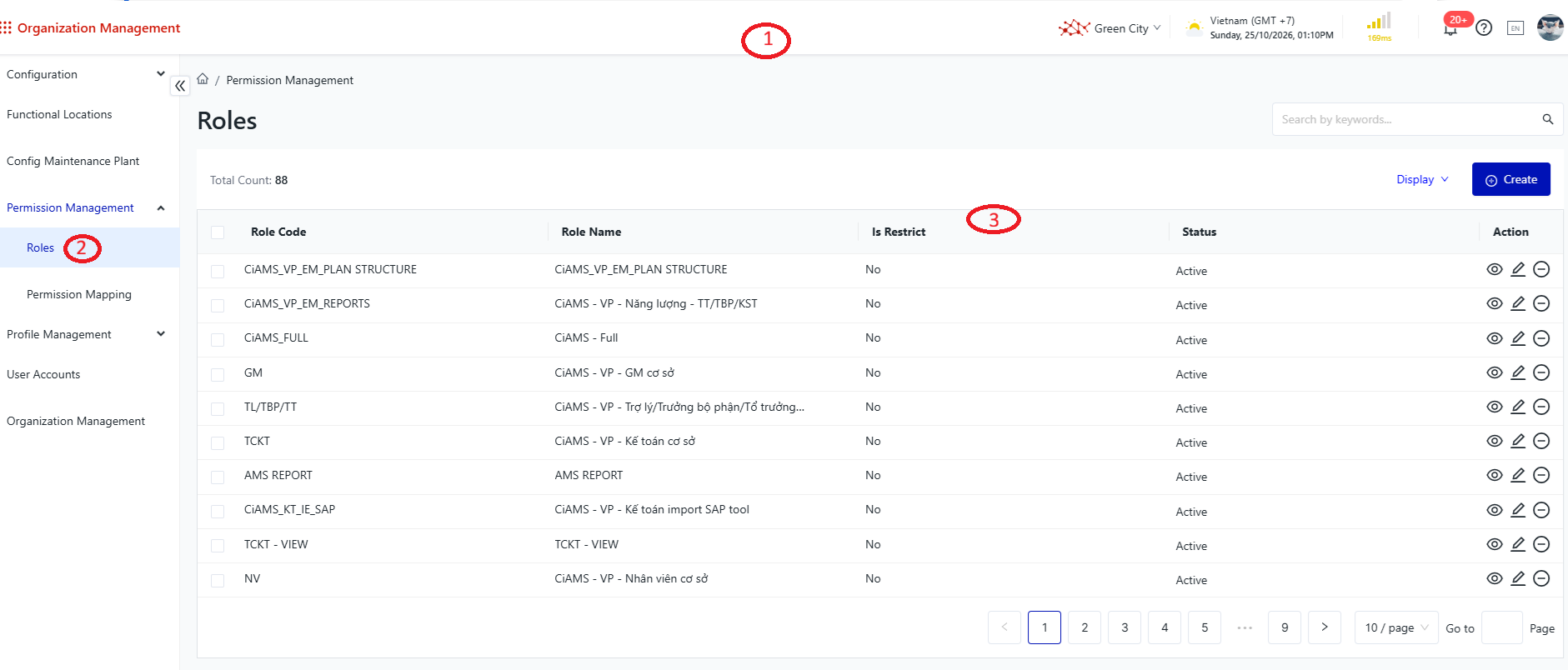
Details of the information displayed on the screen: ① Header: Contains configuration information related to the logged-in account. ② Menu: Contains a list of functions that the user is authorized to access within the module. ③ Business Operation Area: Displays business information and provides related operations. 1. View the Functional Role List
Purpose: View the list of functional roles configured in the system. Steps to Perform Step 1: The user accesses the Functional Role Management function in the Organization Management module, as described above. Step 2: View the functional role screen. 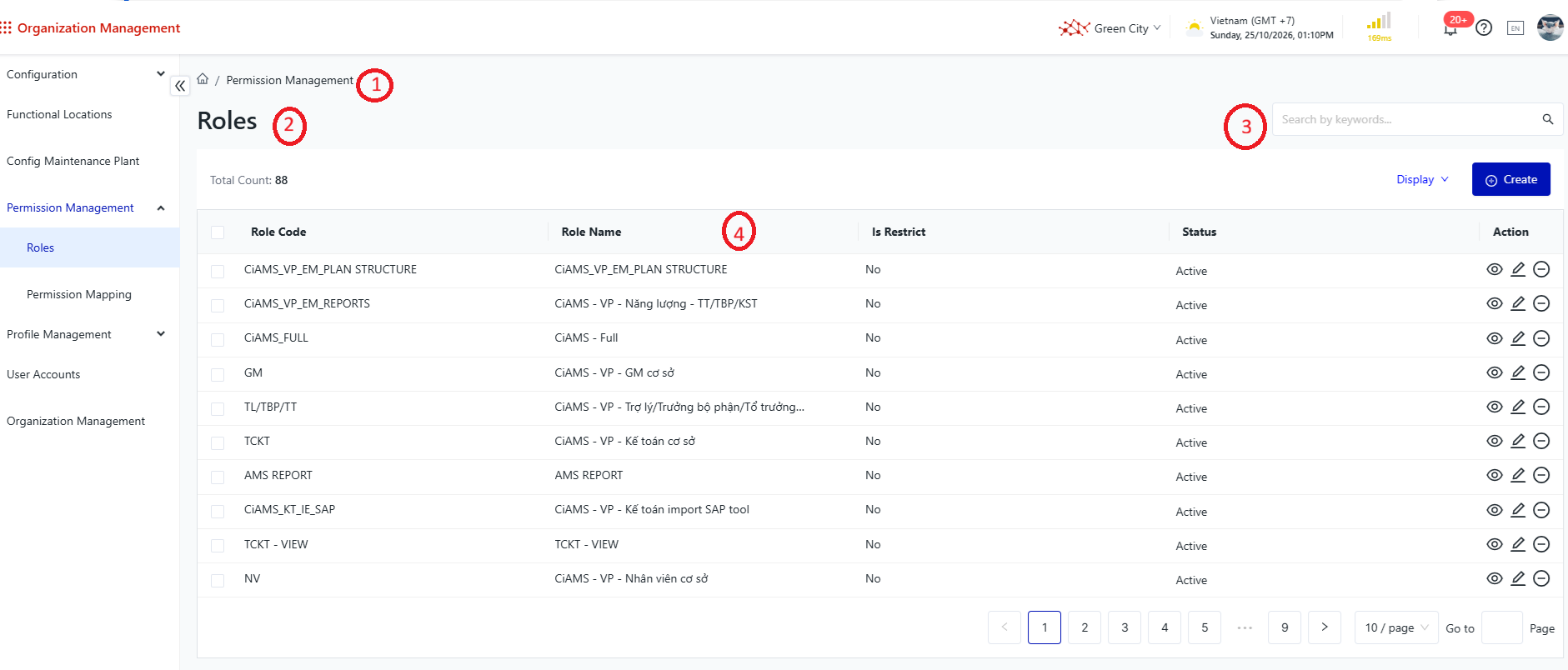
Chi tiết các thông tin trên màn hình: ① Đường dẫn vào màn hình chức năng ② Tên màn hình chức năng ③ Khu vực chứa thông tin tìm kiếm và lọc dữ liệu ④ Khu vực danh sách người dùng
2. Tìm kiếm quyền chức năng
Mục đích: Tìm kiếm quyền chức năng trên hệ thống Các bước thực hiện Bước 1: Người dùng thực hiện truy cập vào chức năng Quản lý quyền chức năng trong phân hệ Quản lý cấu trúc tổ chức như hướng dẫn ở trên Bước 2: Chọn biểu tượng tìm kiếm. Hệ thống mở ra danh sách các điều kiện có thể sử dụng. Step 3: Enter the search criteria and select Search. The system refreshes the functional role list to display functional roles matching the specified search criteria. ① Search:
② Search Results Area: Displays the results based on the entered search criteria. 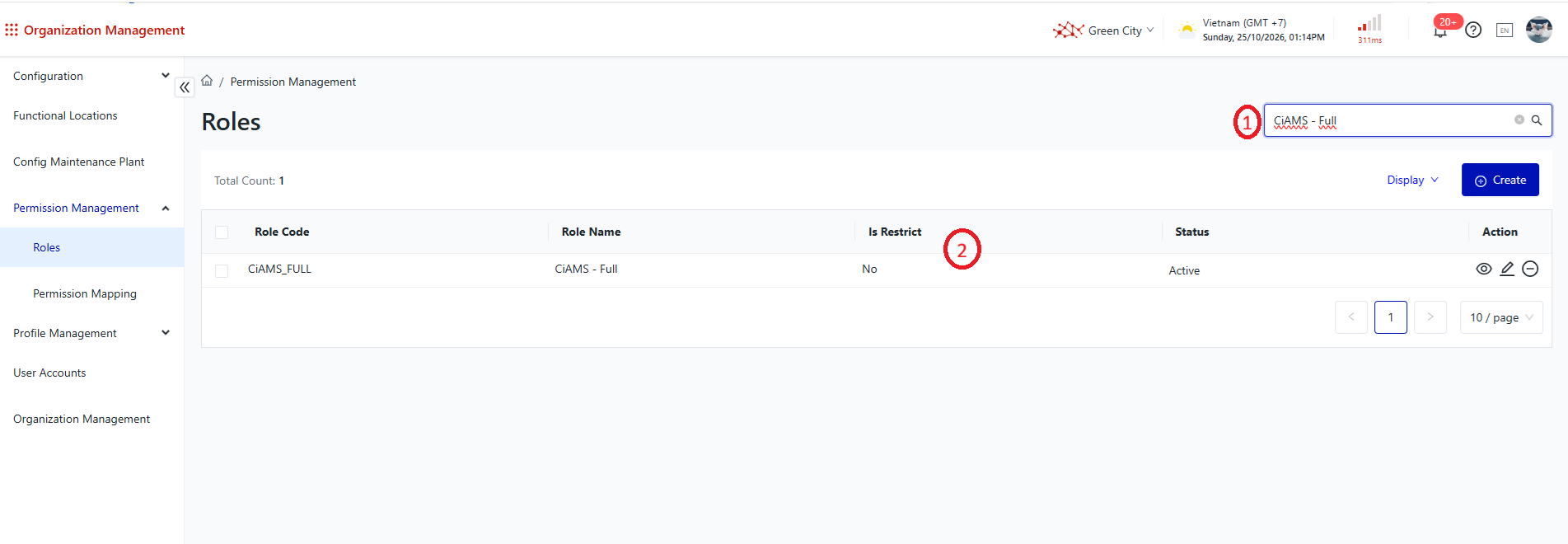
3. View Functional Role Details
Purpose: View detailed information about a functional role. Steps to Perform Step 1: The user accesses the Functional Role Management function in the Organization Management module, as described above. Step 2: Select the functional role whose details you want to view, then select the View action. 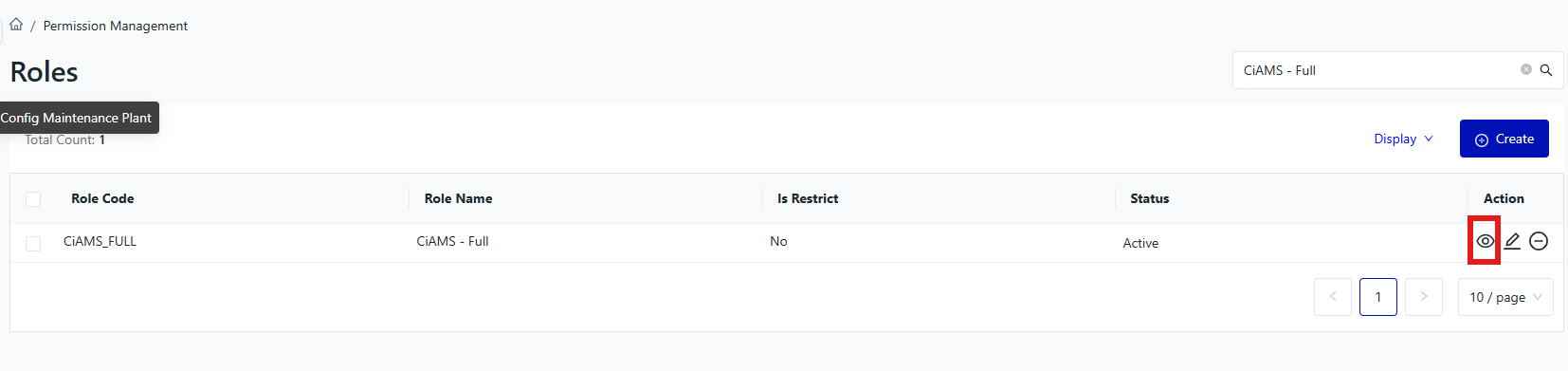
Step 3: View the functional role details screen. 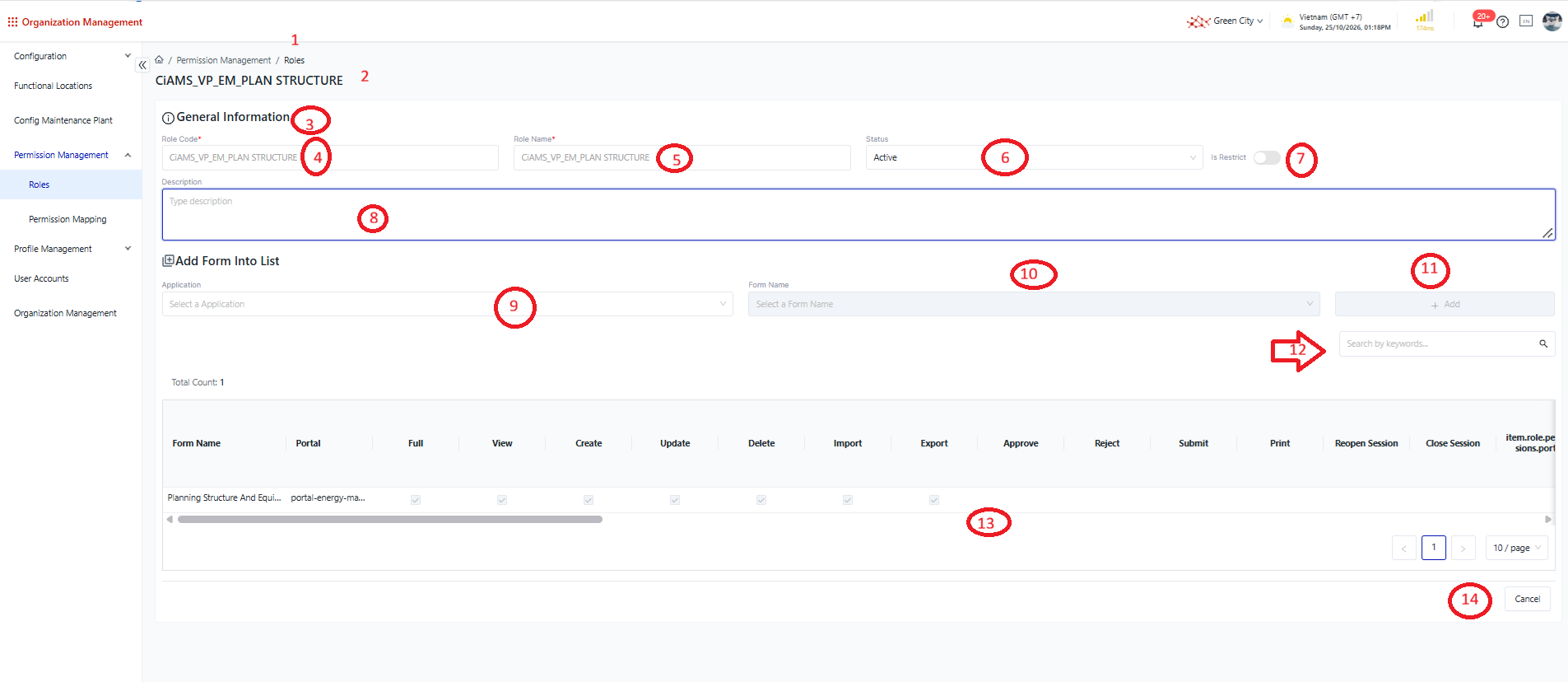
Details of the information displayed on the screen: ① Navigation Path: Displays the navigation path to the information screen. ② Functional Role Name: Displays the name of the functional role being viewed. ③ Information Group Name: Displays the name of the information group. ④ Functional Role Code: Displays the code of the functional role being viewed. ⑤ Functional Role Name: Displays the name of the functional role being viewed. ⑥ Functional Role Status: Displays the current status of the functional role. ⑦ Functional Role Type Parameter: Determines the type of functional role. The default setting is Off, and users can change this setting.
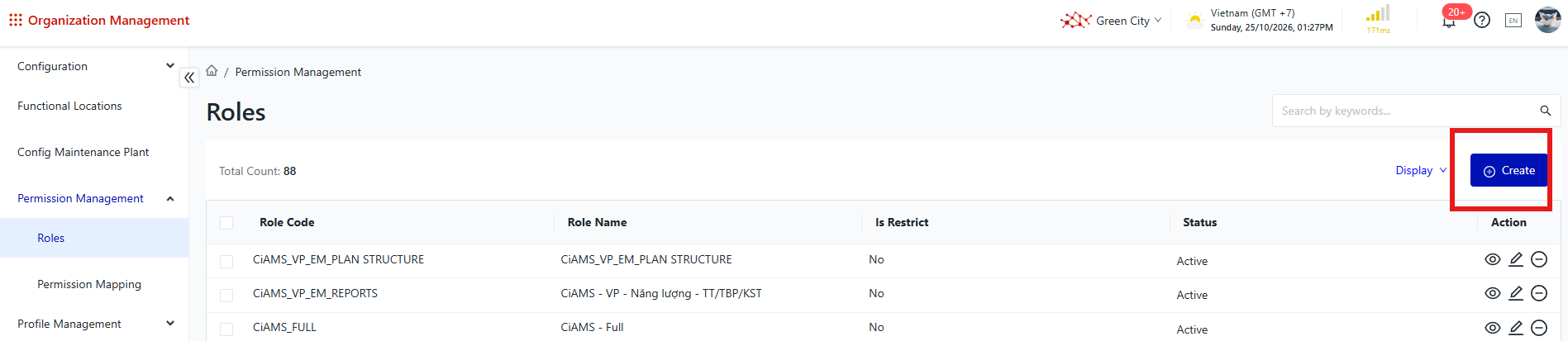
Step 3: Review the screen and enter the information for the new functional role. 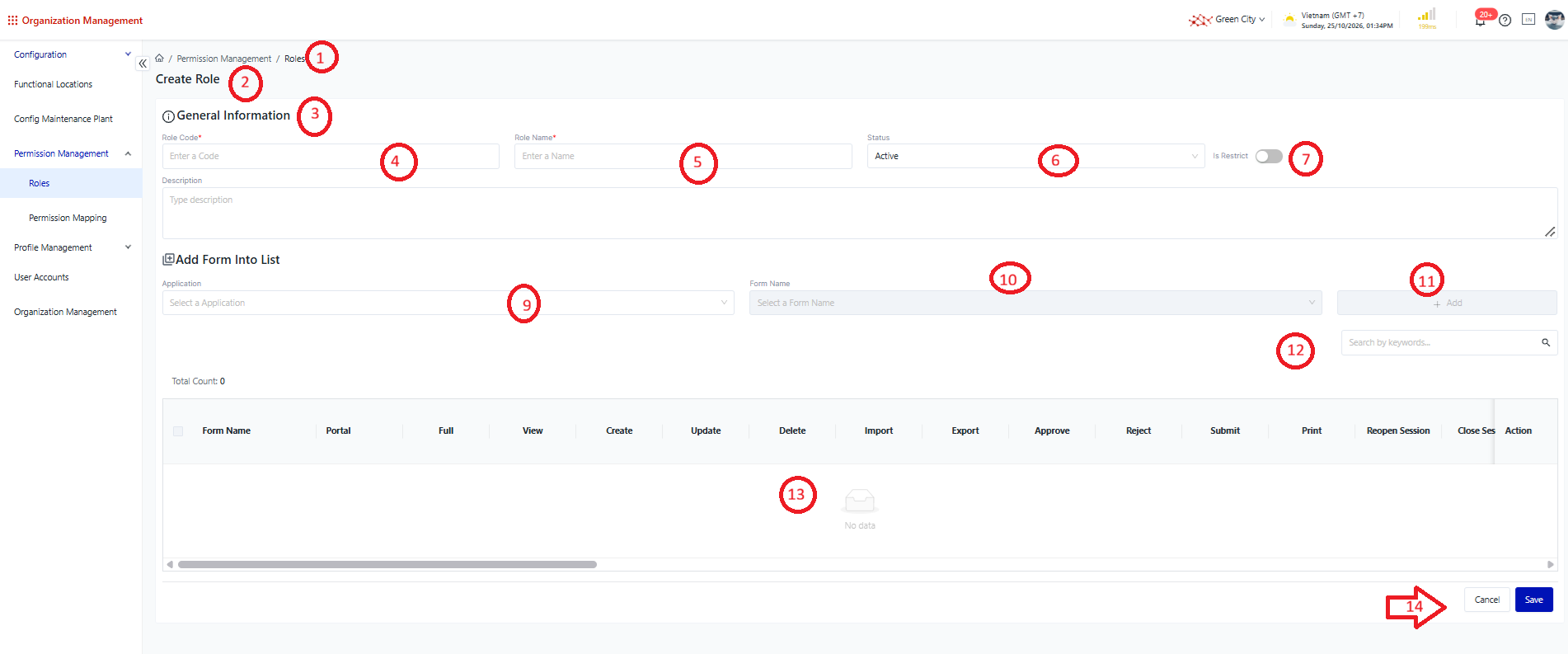
Details of the information displayed on the screen: ① Navigation Path: Displays the navigation path to the information screen. ② Functional Role Name: Displays the name of the functional role being viewed. ③ Information Group Name: Displays the name of the information group. ④ Functional Role Code: Displays the code of the functional role being viewed. ⑤ Functional Role Name: Displays the name of the functional role being viewed. ⑥ Functional Role Status: Displays the current status of the functional role. ⑦ Functional Role Type Parameter: Determines the type of functional role. The default setting is Off, and users can change this setting.
⑧ Description: Displays the detailed description of the functional role. ⑨ Functional Module Code and Name: Displays the code and name of the functional module in the system. ⑩ Functional Screen Code and Name: Displays the code and name of the functional screen belonging to the selected module. ⑪ Action Button
⑫ Screen List Search Box: Allows users to filter or search for functions assigned to the functional role being viewed. ⑬ Permission List: Displays the permissions assigned to the functional role being viewed. ⑭ Action Buttons
Step 3: Enter valid information on the Add New screen. If any information is invalid, the system will display an error message corresponding to the issue, allowing the user to correct it. Step 4: Save the information. The system will validate the entered information. If all information is valid, the system will display a success message, and the newly created functional role will appear in the functional role list. 5. Edit Functional Role Information
Purpose: To edit an existing functional role in the system. Steps to Perform Step 1: The user accesses the Functional Role Management function in the Organization Management module, as described above. Step 2: Select the functional role whose information you want to edit, then select Edit. 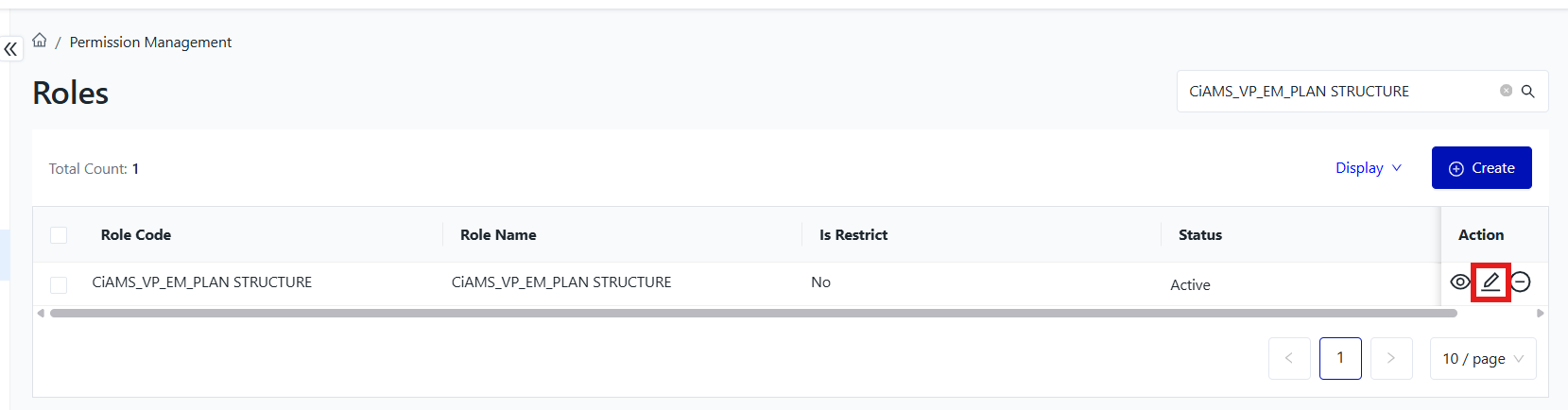
Step 3: The system opens the Edit Functional Role screen, where users can modify the information as needed. 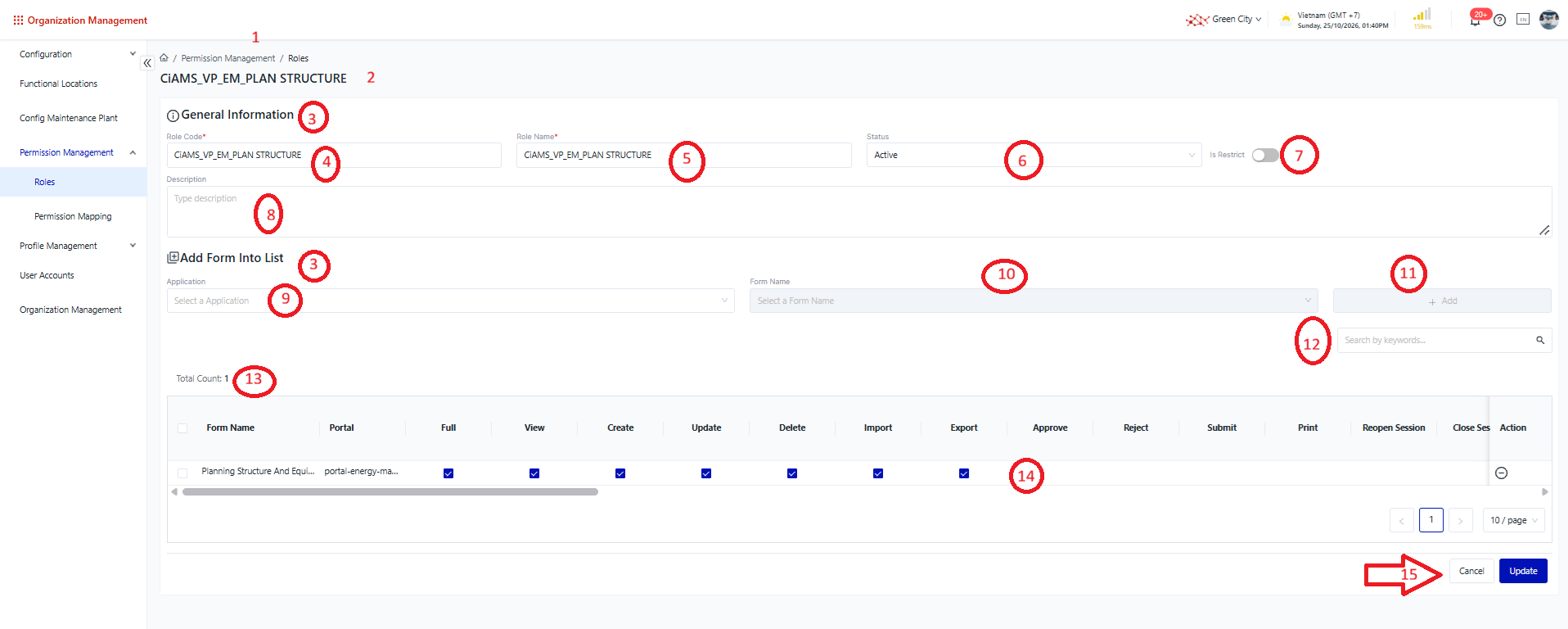
① Navigation Path: Displays the navigation path to the information screen. ② Functional Role Name: Displays the name of the functional role being viewed. ③ Information Group Name: Displays the name of the information group. ④ Functional Role Code: Displays the code of the functional role being viewed. ⑤ Functional Role Name: Displays the name of the functional role being viewed. ⑥ Functional Role Status: Displays the current status of the functional role. ⑦ Functional Role Type Parameter: Determines the type of functional role. The default setting is Off, and users can change this setting.
⑧ Description: Displays the detailed description of the functional role. ⑨ Functional Module Code and Name: Displays the code and name of the functional module in the system. ⑩ Functional Screen Code and Name: Displays the code and name of the functional screen belonging to the selected module. ⑪ Action Button
⑫ Screen List Search Box: Allows users to filter or search for functions assigned to the functional role being viewed. ⑬ Selected Screen Count: Displays the number of functional screens selected for the functional role currently being edited. ⑭ Permission List: Displays the permissions assigned to the functional role being viewed.
⑮ Action Buttons
Step 3: Enter valid information on the Edit Functional Role screen. If any information is invalid, the system will display an error message corresponding to the issue, allowing the user to correct it.
Step 4: Save the information. The system will validate the entered information. If all information is valid, the system will display a success message, and the changes will be updated immediately.
|
Fields Description
|
|
|
Remarks
|
N/A
|